Understanding your results
Reading the analysis report - from the verdict and scorecard to individual findings and evidence.
After the analysis finishes, click the bid name in the sidebar or use View Results on the Analyze Bids page to see the full report.
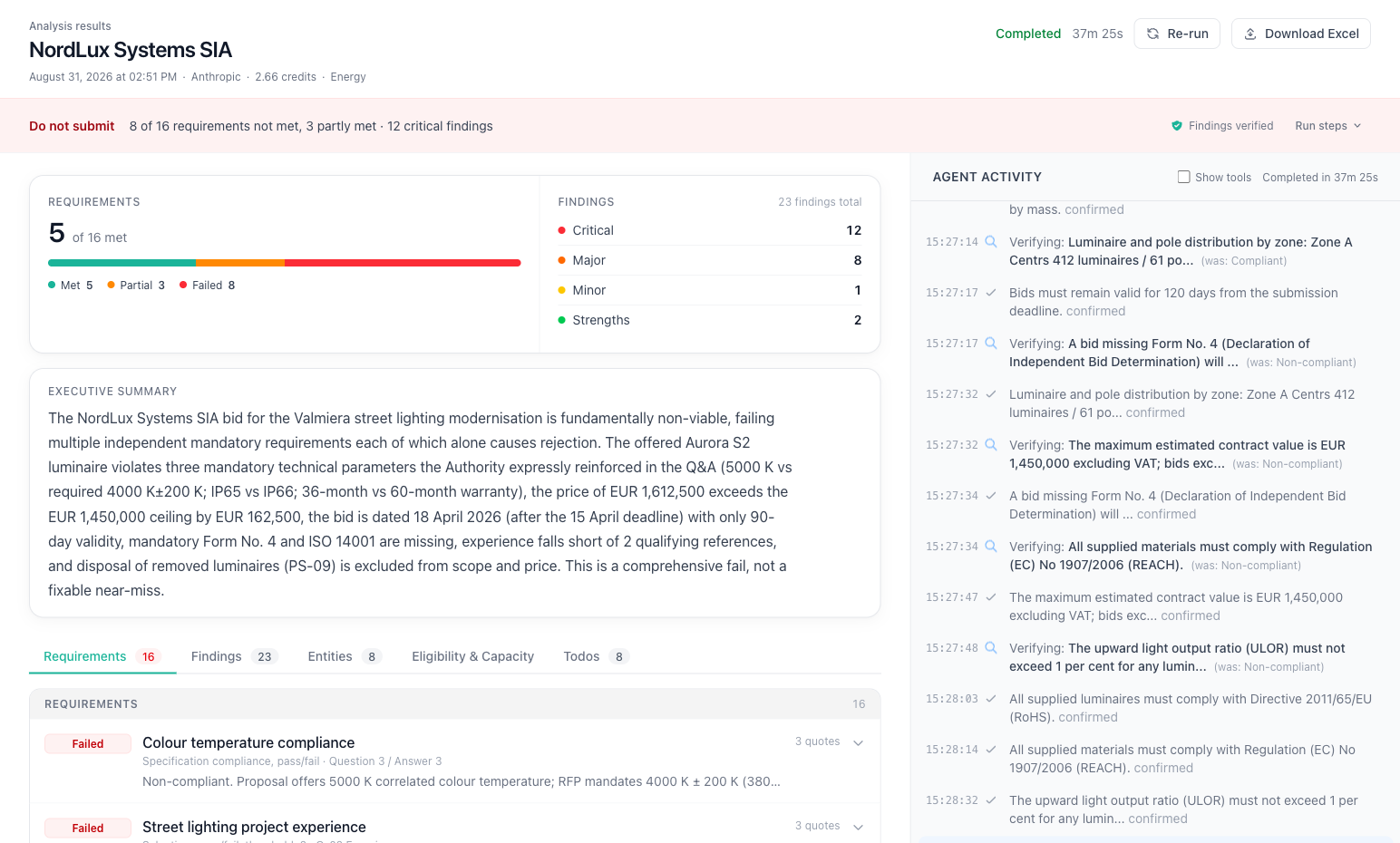
The results page has a two-panel layout: the analysis report on the left and the agent activity feed on the right. The run bar with the verdict sits across the top, under the run header.
Report tabs
The report is organized into tabs so you can move between different views of the same run:
| Tab | What it shows |
|---|---|
| Requirements | Every approved RFP requirement and how this bid measures against it |
| Findings | Gaps, mismatches, and strengths the AI raised, grouped by severity |
| Entities | People and companies captured from the documents |
| Eligibility & Capacity | Register screening of the bidder, its subcontractors, and its people against Latvian public registers |
| Todos | Action items to address before submission |
The Requirements tab opens first when the run checked any requirements; otherwise the Findings tab does. The Eligibility & Capacity tab appears only when register screening ran. The verdict, scorecard, and executive summary sit above the tabs and apply to the whole run.
Verdict and scorecard
When the run finishes, the run bar under the header shows the verdict:
-
A recommendation - one of four levels, with the bar tinted to match:
- Strong submit - the proposal looks solid, minor or no issues found
- Submit with improvements - the proposal is decent but has gaps that should be addressed
- Significant revision needed - serious problems were found, submitting as-is is risky
- Do not submit - critical compliance failures, likely to be rejected
-
A one-line reason built from the counts, for example "3 of 40 requirements not met, 2 partly met · 1 critical finding"
-
Findings verified - shown when the verification step ran
Click Run steps in the bar to see the four run steps again.
At the top of the report, the scorecard has two panels:
- Requirements - how many requirements were met out of the total, a colored bar, and the count for each status (Met, Partial, Failed, and any Unverified or Not applicable)
- Findings - how many findings at each level: Critical, Major, Minor, and Strengths
Below the scorecard, the Executive summary explains the overall assessment in a few paragraphs of plain language.
Start here. If the recommendation is "Strong submit" and you only see minor findings, you might not need to dig into every detail. If it's "Significant revision needed", you'll want to read every critical and major finding carefully.
Findings
On the Findings tab, findings are displayed as collapsible cards, grouped by severity. Each card shows a summary at a glance - click to expand for full details.
What you see at a glance
Each collapsed card shows the severity badge (Critical, Major, Minor, or Strength), the topic, a short description preview, and a verification checkmark if the finding has been verified. See key concepts for what each severity level means.
Expanded details
Click a finding to expand it and see:
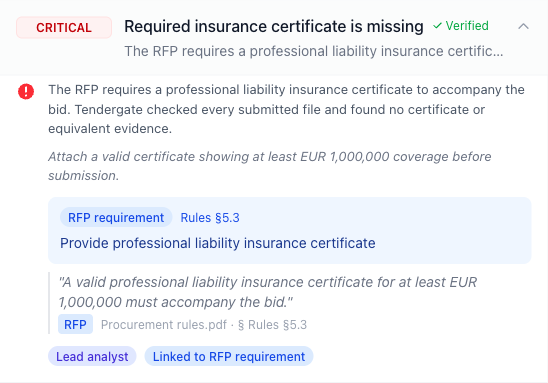
- Full description of what the AI found
- Recommendation for how to address the issue
- Evidence - exact quotes from the documents:
- From the RFP: the requirement being checked (e.g., "The bidder must hold a valid ISO 9001:2015 certification")
- From the proposal: what the vendor actually said (e.g., "Our company is currently pursuing ISO 9001 certification and expects to achieve it by Q3 2026")
- Provenance badge showing which agent identified this finding:
- Lead Analyst - the main orchestrator found this during overall analysis
- Criterion: [name] - a specialist agent found this while analyzing a specific evaluation criterion
- Lot [number]: [name] - a specialist agent found this while analyzing a specific lot
The evidence lets you verify the AI's reasoning yourself. If the quotes don't support the finding, you know to disregard it.
A finding can also trace back to a specific approved RFP requirement — so you can jump from "what's wrong" straight to the requirement it relates to on the Requirements tab.
Verification status
For Critical and Major findings, the verification agent weighs in:
- Verified - a second AI confirmed the finding. Higher confidence.
- Downgraded after review - the verifier thinks it's less severe than initially assessed. The severity gets adjusted.
- Withdrawn after review - the verifier concluded it's a false positive. The finding is taken off the report and out of the counts.
- Not verified - the verifier could not re-read the evidence it needed to reach a conclusion. The item is left as the analysis recorded it and marked accordingly, rather than being confirmed by default.
Verification doesn't happen for Minor findings or Strengths - those are lower-stakes and don't need the extra check.
The verifier also re-checks evaluation criterion values and requirement rows: the ones the analysis flagged as not met, partial, or unverified, plus a sample of rows marked as met. It either confirms the status or corrects it in either direction, shown as Revised after review with the reason. A requirement marked as not met can be upgraded to met when the evidence is there, and a met one can be downgraded when it isn't.
Findings raised by register screening carry a Register screening label instead of a verification outcome. They come from an official register rather than from the documents, so the document verifier has nothing to re-read and never adjudicates them.
Agent activity panel
The right panel shows a chronological feed of what the AI agents did during analysis. You can see:
- Which documents the agents read
- What searches they performed
- When findings were recorded
- Verification outcomes
This is useful for understanding how the AI reached its conclusions. If a finding seems off, check the activity panel to see what the agent was doing when it raised that finding.
Requirements tab
If you extracted and approved RFP requirements, the Requirements tab shows how this bid measures against each one. Every row gives you a status:
- Met — the proposal satisfies the requirement
- Partial — partially satisfied, with caveats
- Failed — the requirement is not met
- Unverified — the AI couldn't find enough evidence to decide
- Not applicable — doesn't apply to this bid (for example, a lot the vendor didn't bid on)
Rows that need attention are listed first. Each row shows the requirement name, a line with the evaluation method, the source RFP reference, and the applicable lots, a preview of the assessment, and how many evidence quotes back it.
Click a row to open it:
- Requirement — the full requirement text from the RFP
- Assessment — the offered value, score, or the AI's assessment of the proposal
- Verification — the verifier's outcome and reasoning, when the row was re-checked
- Evidence — the quotes the assessment relies on, each tagged RFP or Proposal and labelled with the document it came from
The tab badge shows the total number of requirements. It turns red when some of them are failed, partial, or unverified; hover over it to see how many need your attention.
This data powers the bid comparison feature available in the Compare & Export step.
Captured entities
The analysis picks up people and companies mentioned in the documents. You'll see them listed with:
- Name and role (e.g., "J. Smith - Project Manager")
- Type (person, company, organization)
- Registry match (for Latvian procurements) - if the company is in the official business register, you'll see its registration number. Click the name to open its full record: status, address, beneficial owners, shareholders, and board members, with a link to the original data.gov.lv dataset.
This is useful for due diligence. You can check if a subcontractor is a real registered company, or spot potential conflicts of interest.
Eligibility & Capacity
For Latvian procurements, Tendergate automatically screens the bid against public open-data registers after the analysis finishes — no extra step. The Eligibility & Capacity tab shows one card per screened subject: the bidder, each named subcontractor, and the bidder's people (beneficial owners, board members, and shareholders).
Who gets screened
Subjects don't depend on the analysis noticing them. After the analysis, the bid text itself is swept for registration numbers, and every number that resolves in the business register is picked up for screening — so a subcontractor named deep in an annex is found even if it never appeared in the analysis findings. Numbers that resolve to nothing (phone numbers, invoice lines, personal identity codes) are dropped rather than guessed at.
A company named in the bid is not automatically part of it, though. Before register facts turn into findings, the AI reads the bid documents to establish each company's role in this bid. Register checks raise findings only for the bidder, its subcontractors, other current bid participants, and their people. A company mentioned for another reason, such as a past client in a reference list, still gets a card, but its register facts are not held against the bidder.
When the documents don't make a company's role clear, you get one minor Bid relationship needs review finding for it instead of adverse findings. It lists the register checks in question. Confirm the company's role in the bid documents before deciding whether those checks apply.
Each card names the subject's role, for example Bidder, Subcontractor, Current bid participant, Beneficial owner, or Named in bid. A person linked to a company that is only mentioned in the bid reads Related to a mentioned company — bid relationship unestablished.
Each card is also labelled with how the subject was matched, so you always know how much to trust it:
- Exact match — the registration number resolved to a record in the Latvian register.
- Name match — verify — there was no exact identifier, so the subject was matched on its name.
- Reg. no. not in Latvian register — verify — a registration number was found in the documents but does not resolve here. A foreign bidder quoting its own national code lands in this state.
Exclusion grounds appear as status pills:
- Sanctions — the national sanctions list
- Insolvency — active or historical insolvency proceedings
- Suspended activity — suspended economic activity
- VAT payer — VAT registration status
- Tax debt — outstanding tax debt above the reporting threshold, checked live against the State Revenue Service
A pill reads None when the register is clean and Flagged when there's a hit; a hit also raises a finding on the Findings tab. When the subject could not be resolved in the register, the pill reads Unknown instead of None — the check did not run, which is not the same as a clean result.
Register facts short of an outright exclusion raise a finding too, weighted by the kind of tender you're running. A builder struck from the construction register is a major issue on a works contract and a minor note on a stationery contract — same register row, different severity.
Screening also reconciles against what the analysis already wrote. The analysis reads the bid before screening runs, so it can only see the bidder's own signed declaration. If it recorded a strength for a declaration that the register later contradicts — a subcontractor declared clean but listed under sanctions — that strength is withdrawn rather than left standing beside the contradicting finding.
Capacity data is matched to the bidder and shown alongside:
- Financial capacity — net turnover and employee count from filed annual reports
- Construction qualification — the builder-register qualification class and activity spheres
- Certified specialist — matched BVKB-certified specialists and whether their certificate is currently valid
Every data point links to the exact data.gov.lv dataset it came from, so any result is traceable to its source.
Screening is informational decision support, not an automatic eligibility ruling. A name-based match is marked "verify" — always confirm a hit against the primary register before acting on it.
Exporting this run
You can export this single analysis run to Excel using the Download Excel button in the run header. The button appears once the run has finished. It bundles this bid's findings, requirements, captured entities, and its Eligibility and capacity register checks into one self-contained file — handy when you only need one bid's results. (To export and compare all bids together, use the comparison-level export in Compare & Export.)
Run history
If you've run the analysis more than once on the same bid (for example, after updating documents or refining criteria), you can switch between runs using the run selector dropdown at the top of the results page. Each run is timestamped so you can track how results evolve.
The bid status card also shows a "N previous runs" link when multiple runs exist, making it easy to discover and compare past analyses.
Acting on results
Here's a practical approach:
- Read the verdict, scorecard, and executive summary first for the big picture
- Review all Critical findings - these are potential deal-breakers
- Go through Major findings - these need attention but aren't necessarily fatal
- Check the evidence for anything surprising - make sure the AI interpreted it correctly
- Scan Minor findings for anything you care about
- Review the Strengths - useful for your final evaluation
The AI is thorough but not perfect. It might flag something as critical that you know is acceptable in context (maybe the vendor discussed it in a meeting that isn't documented). Use the evidence to decide for yourself - the AI provides the data, you make the judgment.