Publish a price quote
List what you are buying, set the deadline and who can bid, and publish from one screen.
A price quote is the quickest way to ask companies for prices. You fill in one screen and publish. There is no AI step and it uses no credits.
Open Workspaces → Buying → Start new work → Publish a new tender. You can also start one from Account settings → Publishing. If publishing is not activated yet, the button takes you there first; see Activate publishing.
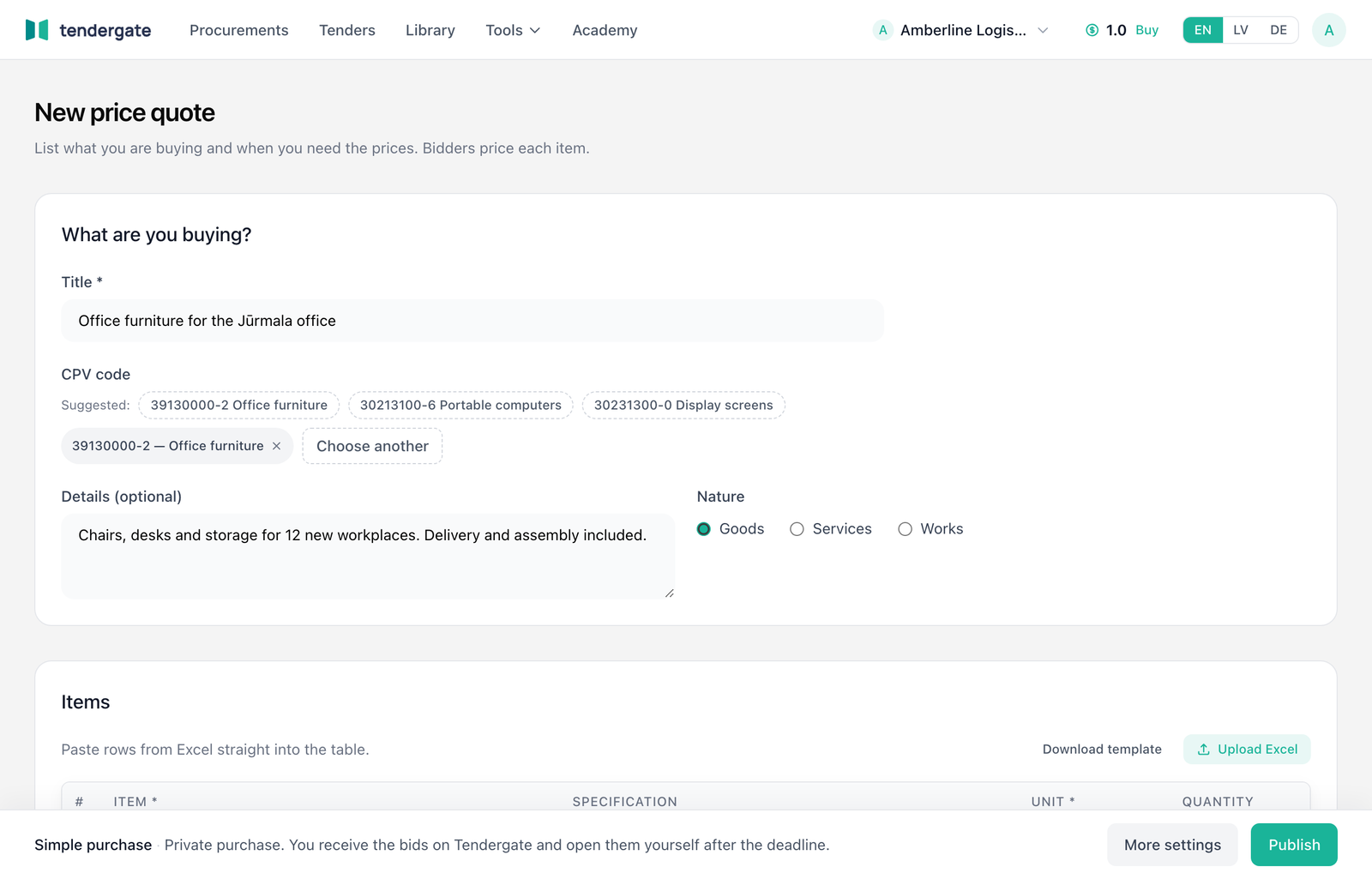
What are you buying?
- Title (required, at least 5 characters), for example "Office chairs for the library".
- CPV code. Tendergate suggests codes from the title: click one to use it, or Choose another. Without a CPV code, matching companies are not notified, but you can still publish.
- Details (optional): anything bidders should know, up to 5,000 characters.
- Nature: Goods, Services or Works.
Items
Bidders price each item. Each item needs a name (Item) and a Unit; Quantity is a number above 0. Specification is optional.
- Paste rows from Excel straight into the table.
- Download template, fill it in, then Upload Excel (.xlsx, .xls or .csv). In Import items from Excel, choose what each column holds, the Sheet and whether the First row is a header. Formulas are read as values. Then click Import (for example Import 12 items) to add the rows, or Replace current items to start over.
- Add item adds an empty row.
- One total price instead of item prices: bidders give one total price, and the items are only listed for scope.
- Split into lots: adds a Lot column, so bidders' prices are grouped by lot.
A price quote can have up to 2,000 items. Under the table, Files for bidders (optional) adds files bidders can download, such as drawings or a specification.
Deadline and buyer
- Deadline for prices: date and time, in Riga time. Give bidders at least 24 hours. Price quotes usually run 5 to 7 days; a shorter deadline gets fewer bids.
- Who pays for this purchase?
- Our company, no public or EU money: a private purchase.
- Public or EU money: Tendergate then asks Who is buying? (A public authority, A utility or An organisation using public or EU funding) and the Value excl. VAT, which decides which rules apply.
- How bids arrive (only for Our company, no public or EU money):
- Sealed until the deadline (default): bids are encrypted on the bidder's computer. Before the opening, nobody in your organization can see them or how many there are.
- Open: see each bid as it arrives: each bid appears in your Bids list as soon as it is submitted. Bidders are told this before they bid. There is no opening.
- Who can bid:
- Anyone (listed on tendergate.ai): the price quote appears in the public catalogue, and companies whose profile matches it are notified when you publish.
- Only companies I invite: it is not listed. Only people with your invitation or link can see it and bid. See Invitations.
The result bar
The bar at the bottom shows which rules apply as soon as you answer, for example "Simple purchase · Private purchase. You receive the bids on Tendergate and open them yourself after the deadline." Its main button depends on the result:
| Result | Button | What happens |
|---|---|---|
| Simple purchase | Publish (or Send for review) | Opens the review dialog |
| Regulated procedure | Continue to the regulated settings | Saves a draft and opens the full settings; see Publish a tender |
| Two more questions needed | Continue to the rules | Opens Rules that apply |
| Listing (bids in EIS) | Continue to listing settings | Saves a draft for a listing with a link to EIS |
If something blocks publishing, the bar says what, for example "Set up your opening key to publish."
Your opening key
You open the bids after the deadline with a key that only you hold: a passkey or an authenticator app. It is separate from your Tendergate sign-in and takes about a minute, once.
- In the Set up your opening key card, click Set up opening key. It opens on the sealing service in a new tab.
- Add the key there: scan the QR code with your authenticator app and enter its code, or use a passkey.
- Come back and click Check again. The card reads Opening key ready.
An open price quote (bids visible as they arrive) needs no opening key.
By default you open the bids yourself. To have two people open them together, or to add evaluators, use More settings and see Openers and evaluators.
More settings
More settings saves the price quote as a draft and opens the full Publication settings: notice, timeline, price form, what bidders submit, documents, submission keys, what is shown after the award and how much time must remain after a change. See Settings. From there, Review and publish opens the same review dialog.
Submission keys
Submission keys are off by default. With them off, bidders confirm each submission with their Tendergate account. To make each bidder company also confirm with its own submission key (a passkey or an authenticator app), tick Require bidders to confirm with a submission key under More settings → Submission keys. Bids are sealed either way. A key adds a few minutes to a company's first bid. Regulated procedures always require one.
Publish
Click Publish. Tendergate saves the price quote and opens Publish this price quote? It lists the title, the rules, the deadline, who can bid, the items or the total price, the files, how bids arrive, the openers and whether submission keys are required, followed by what publishing means:
- "Bids are encrypted on the bidder's computer and stay sealed until the deadline. Nobody in your organisation can see who has bid, or how many, before opening." (For an open price quote: you see each bid as soon as it is submitted.)
- "Every bidder gets the same information. Answers and changes are published to everyone."
- Whether the price quote appears on tendergate.ai or only invited companies can see it.
Tick I confirm the information is correct and I may publish this tender for your organization and click Publish. Publishing asks for your opening key, the passkey or authenticator code you set up on the sealing service. The price quote is then Open for bids. A public one is listed on tendergate.ai within about a minute.
If you close the dialog, the price quote stays a draft. Open it again with Review and publish on the publication's Overview.
Only owners, admins and the procurement owner can publish. Other members see "Ask an owner, admin or the procurement owner to publish."
Your organization's first tender is checked by Tendergate before it goes live. The button then reads Send for review. We email you when it is approved, usually within one working day. Open the price quote and choose Confirm with your opening key to publish it.
After publishing
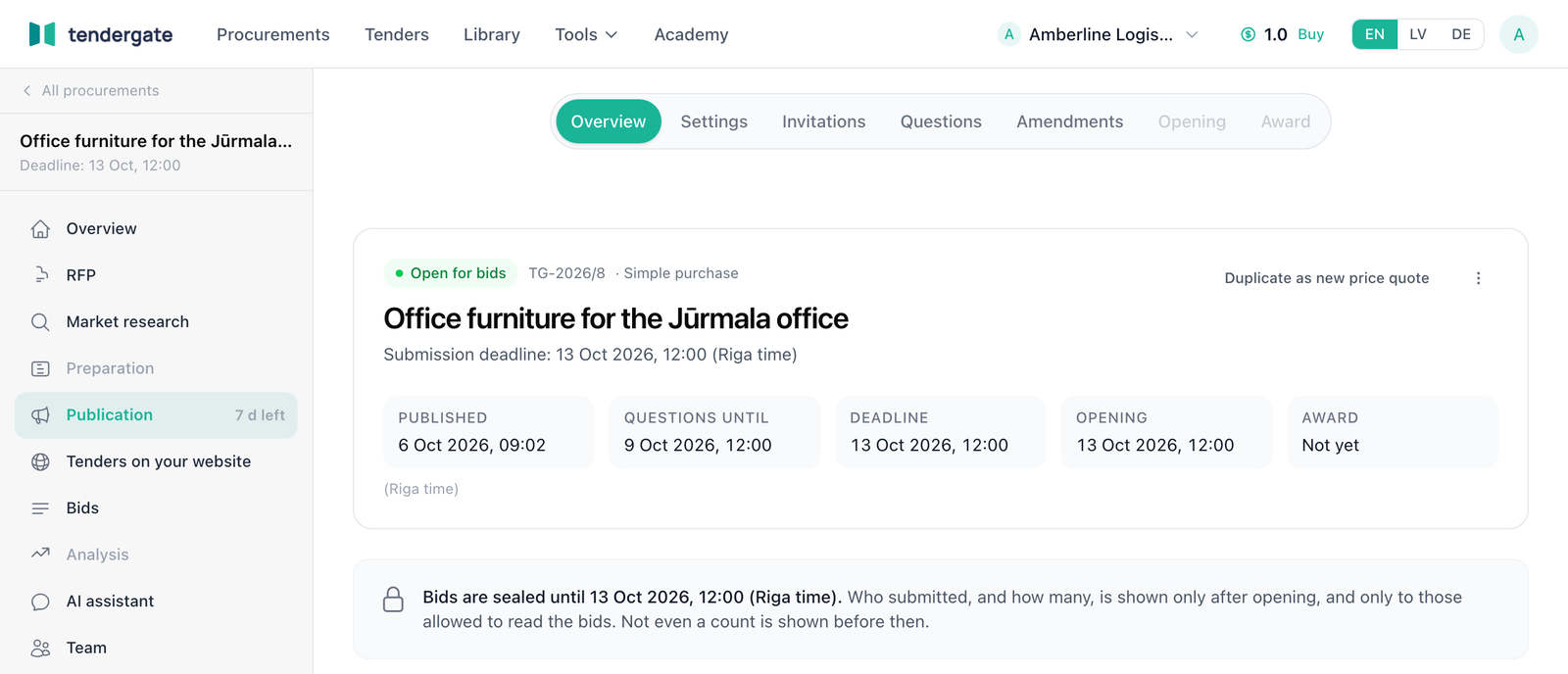
The publication's Overview shows the status, the timeline (Published, Questions until, Deadline, Opening, Award) and, for a sealed price quote, "Bids are sealed until" the deadline. The Sharing card has the public link, or the invitation link for an invite-only price quote. Next:
To publish a similar price quote again, use Duplicate as new price quote on the Overview. It copies the items, documents and files. Invitations, questions and bids are not copied.