Preparing a bid
The bidding side of a procurement workspace, from a tender to a submitted bid.
A procurement workspace has two sides. The buying side is for writing a tender and evaluating the bids you receive. The bidding side is for preparing your own bid for a buyer's tender: you read the tender, decide whether to bid, prepare and check your documents, and record the result.
Reviewing the tender
Tender documents, the tender passport, Go / No-go, Needs attention and tender changes
Your bid
Versions, checks against the tender, the package, submitting and the result
Working as a team
Team, tasks, questions and decisions, My work, reminders and auto-prepare
Starting a bid
There are two ways to start.
From the tender catalogue
Open a tender's tender page and click Start bid. Tendergate creates a bid workspace, imports the tender documents and extracts the requirements. This uses credits. Afterwards the button reads Open bid.
Tendergate imports the documents automatically for:
- Latvian tenders published in EIS
- Latvian tenders whose IUB notice has the documents attached, as for procurements run outside EIS
- tenders published on Tendergate
This also works when you start from another publication of the same procedure, such as its TED notice. For other tenders, download the documents from the portal or the notice and upload them under Tender documents.
For a tender that takes bids on Tendergate, the bid workspace also has a Submission page, where you submit your bid. See Tenders published on Tendergate.
If you delete a bid workspace that was started from a tender, you can bring it back with Restore bid on the same tender page.
From Overview
Open Workspaces → Bidding → Start new work. Choose Draft bid documents with AI to compose a bid or Analyse bid with AI to check an existing one, and enter the bid name. Then upload the tender documents under Tender documents and click Extract requirements. Extraction uses credits. See Setting up a procurement.
Tendergate can also prepare bid workspaces for you each night from your best-matching tenders. See Auto-prepare.
The bidder sidebar
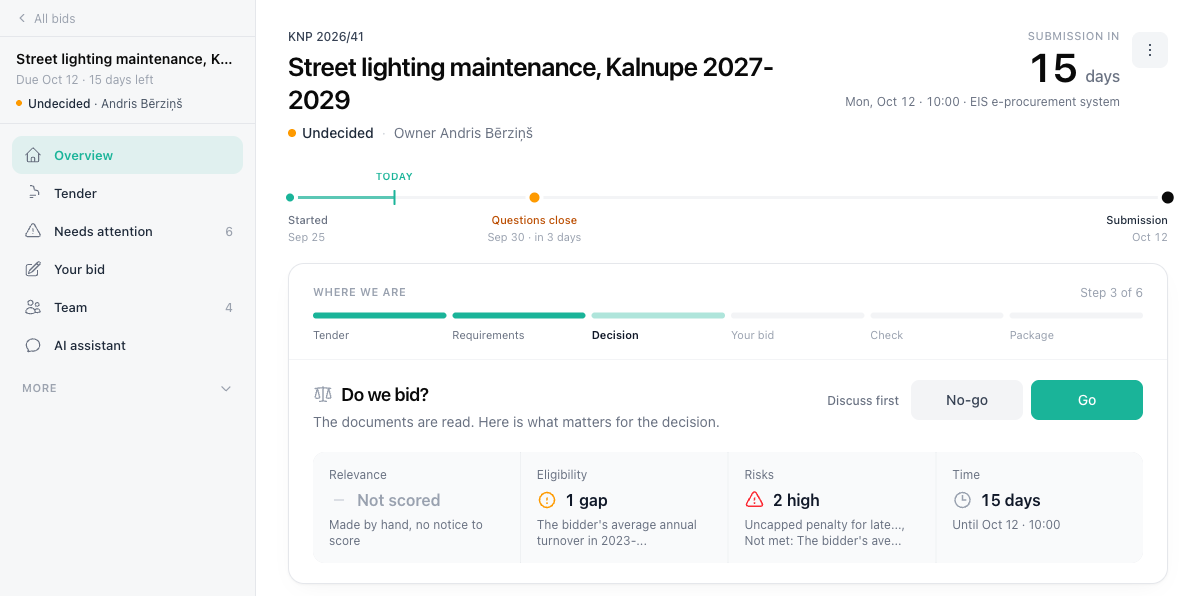
The top of the sidebar shows the bid name, the due date with the days left, the decision and the bid owner. Bidding workspaces above it takes you back to Workspaces → Bidding.
| Item | What it is for |
|---|---|
| Overview | Where the bid stands: deadlines, next step, decision, what needs you and the key facts of the tender |
| Tender documents | The tender documents and what was read from them: requirements, criteria, lots and items. See Reviewing the tender |
| Needs attention | Risks and gaps that could stop you from bidding or winning. See Needs attention |
| Your bid | Your bid documents, their versions and checks, the checklist, drafting and the package. See Your bid |
| Team | Who works on the bid and the open work items. See Working as a team |
| AI assistant | Ask questions about the documents. See AI assistant |
The collapsed More group holds the tools you use less often on a bid: Market research, Received bids, Compare bids, Quality check and Integrity check.
The Overview
The Overview is the starting point of a bid:
- Header - the tender reference, the bid name, the decision, the owner and the days left until submission.
- Time line - when the bid started, when questions to the buyer close and when bids are due.
- Where we are - six steps (Tender, Requirements, Decision, Your bid, Check, Package) and the next action, for example Open your bid.
- Do we bid? - the Go / No-go decision, shown once the documents are read. See Go / No-go.
- Needs you - high risks, open tasks and close deadlines, most urgent first.
- The tender at a glance - the tender passport.
- Side panels - the decision, your bid's latest check, the team, and Integrations when your organization sends bid updates to another system (see Integrations).
Switching side
Open the ⋮ menu on the Overview and choose Switch to buying view or Switch to bidding view. Only the menu and the Overview change. No data is deleted. You cannot switch while an AI agent is working on the workspace.
Workspaces created before the two sides existed show the same menu item, so you can set them up as a bid or as a procurement.
Owners and admins can preselect the side for new procurements under Account settings → Organization → Workspaces → New procurements. People can still change it in the form.
Following your bids and assigned work
Open Workspaces → Bidding to see your organization's bid workspaces with their next deadline, stage, owner, open items and checklist progress. Filter by stage with All stages, Live, To decide, Submitted and Archive, and by Owner. Old Bids bookmarks redirect here.
Needs attention above the list shows open work assigned to you. All my tasks opens My work; see My work. Start new work → Find a tender opens the catalogue.
What uses credits
These actions use credits from your organization's balance:
- Start bid on a tender page (the requirement extraction)
- Extract requirements on a bid you created yourself, and Import changes when the tender files changed
- Reading the tender passport from the requirements, which runs after each extraction and when you click Read again
- The eligibility check on the extracted requirements, when your company profile or library has evidence to check against
- Review contract terms on Needs attention
- Check your bid on Your bid
- Draft with AI (bid composition)
Recording decisions, work items, the checklist, the package and the result do not use credits. See Credits and pricing.