Bid on a Tendergate tender
Find tenders that take bids on Tendergate, sign in, enter your prices, add files and submit a sealed bid with a signed receipt.
Some buyers publish their price quotes and tenders on Tendergate itself. For those you submit your bid on Tendergate, not on a procurement portal. Bidding is free.
Find the tender
- The public tender catalogue. On tendergate.ai/tenders, click Bids on Tendergate to see only the tenders that take bids here. Their rows say Published on Tendergate. See Public tender list.
- An invitation. A buyer can invite your company by email: "Invitation to bid" with the tender title. Click View tender.
- A link from the buyer. An invite-only tender is visible only to people with its link. Its page says "Invitation-only tender. This page is visible only to people with the link."
- Your matched tenders. If the tender fits your company profile, the morning email says "You can bid directly on Tendergate." See Daily emails.
Read the tender without an account
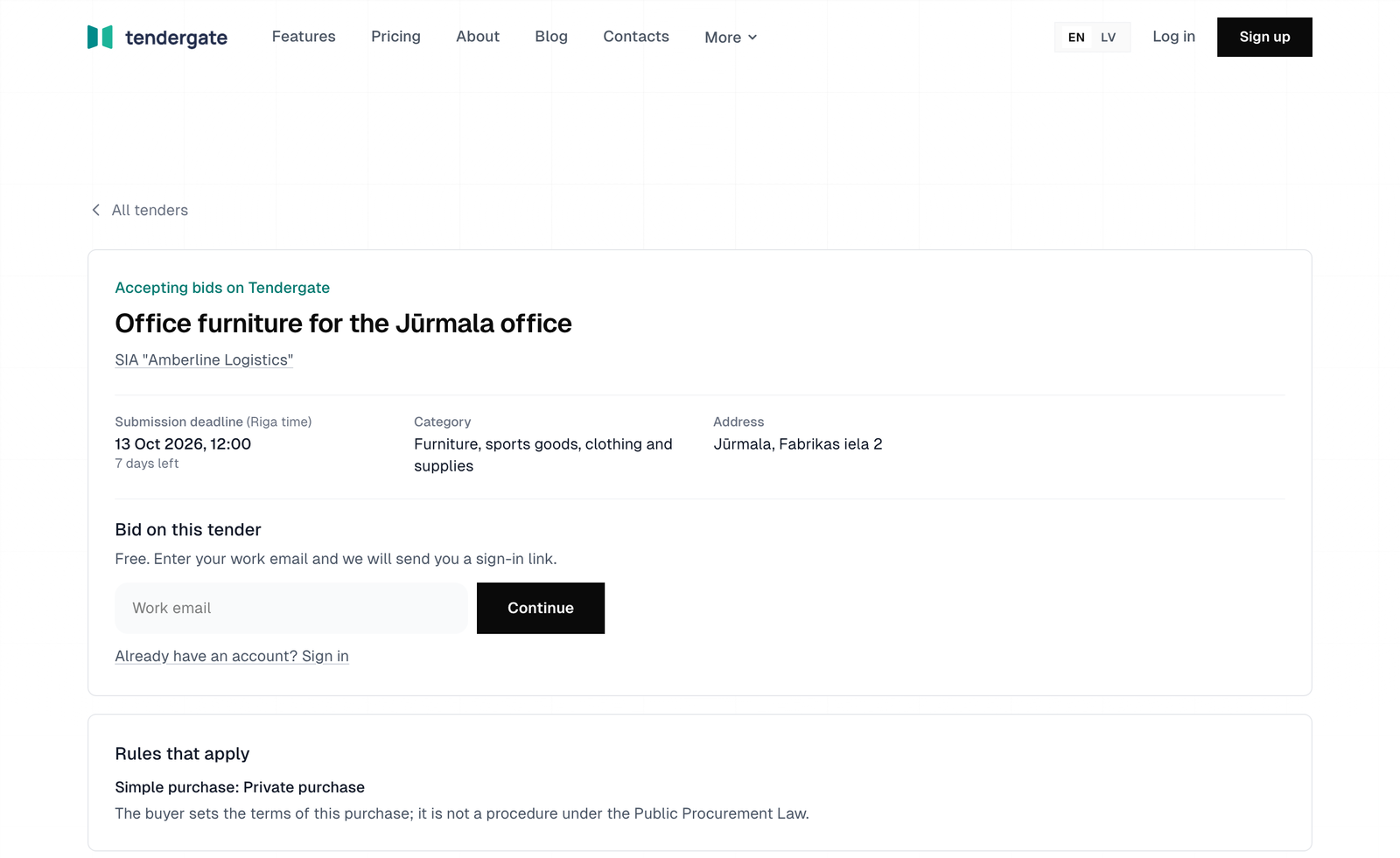
The tender page is public. It shows the buyer, the Submission deadline in Riga time, How to bid, the Rules that apply, the items, the documents to download, the published Questions and answers and any Changes. While bids are accepted, the page says Accepting bids on Tendergate. When the buyer's company link was checked in the register, the page says "Buyer verified in the Enterprise Register".
Sign in
New to Tendergate:
- Under Bid on this tender, enter your Work email and click Continue. We send a sign-in link. It works once, for 30 minutes. If the address already has a Tendergate account, the email asks you to sign in to continue your bid instead.
- Open the link. Under Which company are you bidding for?, enter the Registration number and click Check number: the name comes from the register. If the number is not found, continue with the Company name as you type it. For a company outside Latvia, click Not a Latvian company? and add the Country.
- Enter Your name. Regulated procedures also ask for Your position in the company.
- Tick "I have the right to submit bids on behalf of" the company and click Continue to the bid. By continuing you accept the Terms of use and Privacy policy.
If your company already uses Tendergate, you can still submit this bid at once, from your own workspace for the company.
Already have an account: click Already have an account? Sign in, then Start your bid. If you belong to several organizations, choose which one bids. Once the bid is started, the button reads Open your bid. Your organization must be linked to its company first; see Your company in the register.
Starting a bid on a Tendergate tender is free. It does not extract the requirements automatically; you can start that under Tender documents if you want it, and it uses credits.
Self-declared or verified company details
Your company details show as Self-declared company details until they are verified. They show as Company verified in the Enterprise Register when your organization's registration number and a validated VAT number in your billing details match the company. The buyer sees which one applies on your receipt and in the opening record. You can bid either way.
Your bid workspace
Starting a bid opens a bid workspace that only people from your company can see. Its sidebar item Submission is where you prepare and submit the bid.
Both a price quote and a tender get the full bid workspace, with Submission and Questions added after Your bid. For a price quote, the price form is in Submission.
Prepare the bid
The Submission page shows the deadline in Riga time and, close to it, how much time is left.
Prices
Enter your prices in the price form the buyer chose: a unit price for each item, one price for each lot, or one total price. Each line can have a Note, and the line totals and the total are calculated for you. Unit prices take up to four decimal places and totals up to two; use a dot or a comma.
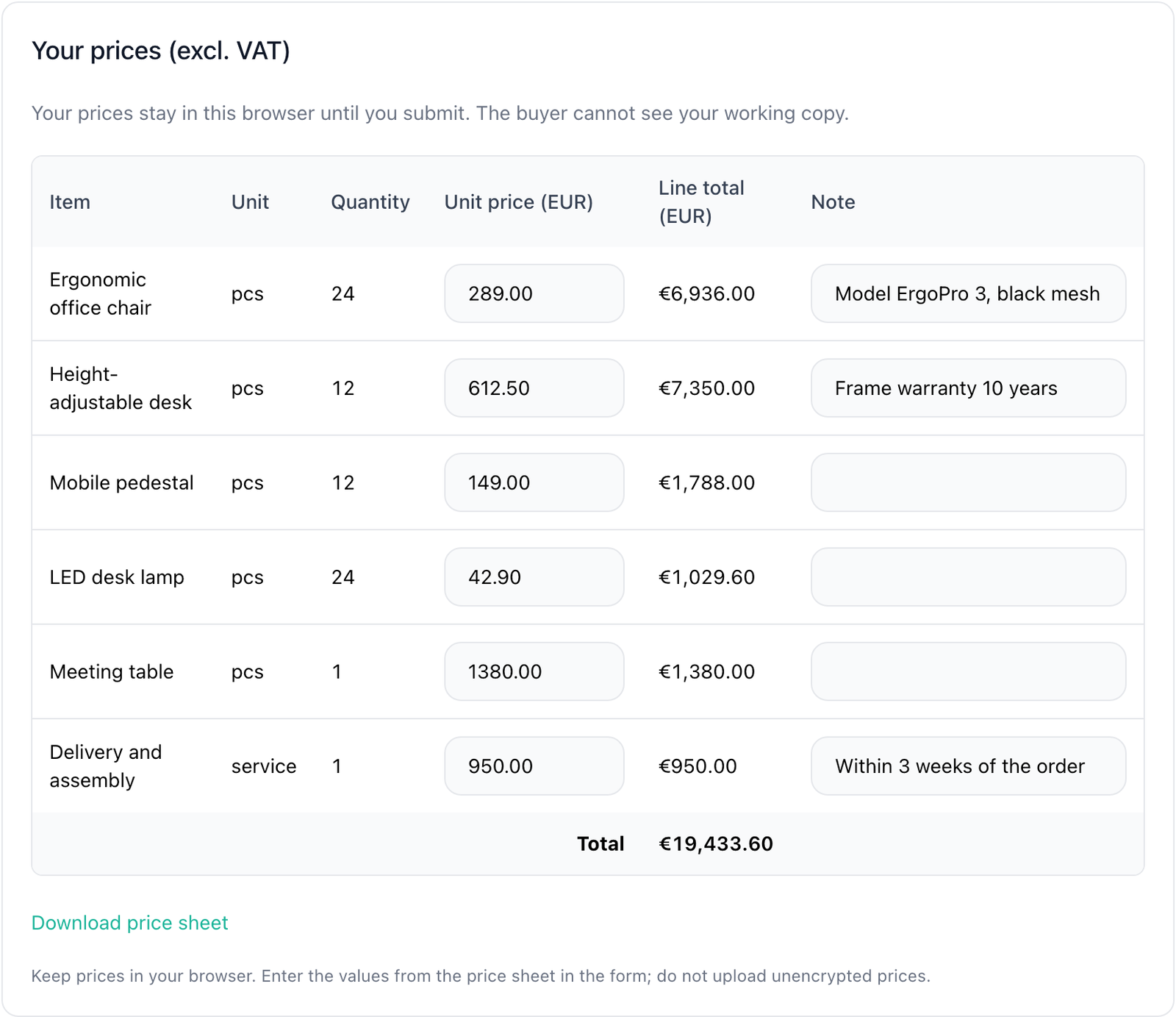
Your prices stay in this browser until you submit. The buyer cannot see your working copy, and prices typed on another device or by a colleague are not shown here. Download price sheet gives you the items in Excel to prepare the prices; enter the values in the form, and do not upload unencrypted prices.
Files
- If the buyer lists required documents, each has its own row with Choose files. "Not attached yet" shows until you add one.
- For other files, choose the Section (Qualification, Technical proposal, Financial proposal or Other files), then Choose files. A simple price quote has one file drop instead.
- Each file is encrypted in your browser and uploaded at once: "Encrypting and uploading…".
- Limits: up to 250 MB per file, 1 GB and 50 files per bid. On a phone, up to 50 MB per file; use a computer for larger files.
- Formats: PDF, EDOC, ASiC-E, SCE, BDOC, DOCX, DOC, XLSX, XLS, ODT, ODS, ZIP, JPG, PNG, DWG, DXF. Signed files are stored exactly as uploaded.
- When the buyer asks for a signed file, your own signed PDF or an eParaksts file (EDOC, ASiC-E) is enough. If we cannot see a signature, we warn you, but you can still submit.
- When the buyer opens prices later, put prices only in the price form and the financial section. Prices inside other sections are opened earlier.
Use a current version of Chrome, Edge, Firefox or Safari; older browsers cannot encrypt files.
Declaration
The declaration line reads, for example, "Anna Bērziņa declares the right to bid for SIA Example." Click Change to choose Your authority to submit (Board member, Authorised employee, Representative or Other authority), correct Your full name and, where asked, the Position. Tick "I have the right to submit a bid for" the company "and accept the submission terms."
The bid check
A free check runs on the page as you work. It warns, for example, when a required document is not attached, some prices are missing, all prices are 0, a file is empty, we could not see a signature, or less than an hour is left. It never blocks you, and only your team sees it: the buyer never does. For an AI check of a tender bid against the requirements, see Checking your bid; it uses credits.
Submit
- Click Submit bid. The Submit your bid? dialog shows your company, "These are the prices that will be sealed. Check them.", your files, the bid check summary and the declaration.
- Confirm it is you with your account: your Account password (and Account authenticator code if you use one) or a passkey. If you joined with a sign-in link and have no password, we email you a six-digit Email confirmation code.
- If the tender requires a submission key, confirm with it too. See Submission keys.
- Your bid is encrypted and stored. The page shows Bid submitted with the version, the time received and the receipt number. You get an email with the signed receipt attached.
A bid counts when you press Submit bid and our database clock records it before the deadline. Start well before the deadline, so that large files finish uploading in time.
Click View receipt to see the receipt. See Receipts and verification.
Submission keys
The buyer chooses whether a tender requires a submission key. Regulated procedures always do. The tender page says so under How to bid: "This tender asks you to confirm with your company's submission key".
A submission key is a passkey or an authenticator app that belongs to the sealing service, separate from your Tendergate sign-in. Each person who submits for your company needs their own key.
- Your company's first key. The first time, set up the key on the sealing service: scan the QR code with your authenticator app (or enter the setup key) and enter its code, or choose Use a passkey instead. To confirm, enter the six-digit code we email to your account email. Your company's admins get an email that a submission key was added.
- Unlock. With keys, the page shows Unlock submission. Unlock with your key to see your stored files and receipt, and to submit, replace or withdraw.
- A colleague's key. If your company already has a key, held by a colleague, click Add my own submission key. Colleagues who have a key get an email; one of them reviews the request and clicks Approve with my submission key. Then you set up your own key. Their approval lets you add one key of your own; it does not share theirs.
Bids are sealed whether or not the tender requires keys. Without keys, you confirm each submission with your Tendergate account only.
Replace or withdraw
Until the deadline you can change your bid:
- Replace bid: change prices or files and submit again. The new version replaces the previous one, and only the latest version is opened. You get a new receipt.
- Withdraw bid: the buyer will not receive that version. You can submit again until the deadline, and you get a withdrawal receipt.
After you submit, your bid workspace shows that your bid was submitted, with its version and time. Only your company sees this status. The buyer cannot see it before opening, and Tendergate admin pages do not show it.
If the buyer changes the tender after you submitted, the page says "The tender changed after you submitted", with the amendment number, and you get an email. Your bid is still valid. Check the changes and replace your bid if needed.
Questions to the buyer
Open Questions in your bid workspace. Under Ask a question, write 10 to 2,000 characters and click Send question. The buyer does not see who asked, and the answer is published to all bidders. You get an email when the answer is published.
Your questions lists your own questions as Waiting, Published or Not answered, with the buyer's reason. After the last day for questions you can still send a question, but the buyer may not answer it.
After the deadline
- Your bid stays encrypted until the buyer's openers open it. The page says when submission closed and which of your versions counts.
- When the bids are opened, your receipt page says "The bids for this tender have been opened."
- When the buyer has decided, Your outcome on the Submission page shows whether your bid was selected, with the reasons and the advantages of the selected offer, and you get an email. If the buyer shares it, a link opens the opening record.
- If the buyer cancels the tender, the submitted bids are never opened. If the buyer ends it without an award, you see the reason.
Open tenders
On some private purchases the buyer sees each bid as it arrives. The tender page says so before you bid: "The buyer sees your bid as soon as you send it: bids on this tender are not sealed."
- The bid page is a plain form: prices, files (up to 50 MB per file and 100 MB per bid) and the declaration. Submit bid asks "Send your bid to the buyer now? They see it at once."
- After sending, The buyer has your bid shows the version, time and number. You can replace or withdraw your bid until the deadline; the buyer sees that it was withdrawn.
- You get a confirmation email, "Bid received", with the version, number and time. Open tenders have no signed receipt.