Tenders catalogue
Browse public tenders from official sources across Europe, filter them, and save your searches.
The Tenders section helps you find procurement opportunities. It brings together 14 national sources and EU TED. You can filter and save searches, and Tendergate selects and scores the tenders that fit your company every night.
The section has two tabs:
- All tenders - the full catalogue, described on this page.
- Matched for you - the tenders Tendergate selected and scored for your organization.
Matched tenders
Views, filters, shortlisting and dismissing
Selection and scoring settings
CPV codes, keywords, criteria, thresholds and recalculation
Eligibility check
Whether your company meets a tender's qualification requirements
Tender page
Score panels, sources and change history
Daily email
What the morning email contains
Coverage and refresh cadence
Tendergate checks each official source on a schedule suited to how its publisher releases data:
| Coverage | Official source | Tendergate refresh |
|---|---|---|
| Latvia | IUB open data | Daily |
| European Union | TED | Daily |
| Germany | Datenservice Öffentlicher Einkauf | Daily for the current month; monthly full refresh |
| Spain | PLACSP | Daily |
| Poland | e-Zamówienia BZP | Daily |
| Lithuania | CVP IS | Daily |
| France | BOAMP | Daily |
| Austria | USP | Daily |
| Czechia | VVZ | Daily |
| Estonia | RHR | Daily |
| Norway | Doffin | Daily |
| Portugal | BASE | Weekly check of the public snapshot |
| Italy | ANAC | Monthly |
| Netherlands | TenderNed | Monthly check of the public snapshot |
| Ireland | eTenders | Monthly check of the official quarterly dataset |
The refresh cadence is how often Tendergate checks a source. Snapshot-based sources can show new records only after their publisher releases an updated dataset.
The line above the list shows when the catalogue was last updated, for example "Catalogue updated today 16:21".
Browsing tenders
The All tenders tab shows open tenders published in the last 30 days. Each row shows:
- the country flag, title and buyer
- the source (for example IUB, TED or RHR) and the estimated value, when known
- the publication date
- the deadline and how many days are left
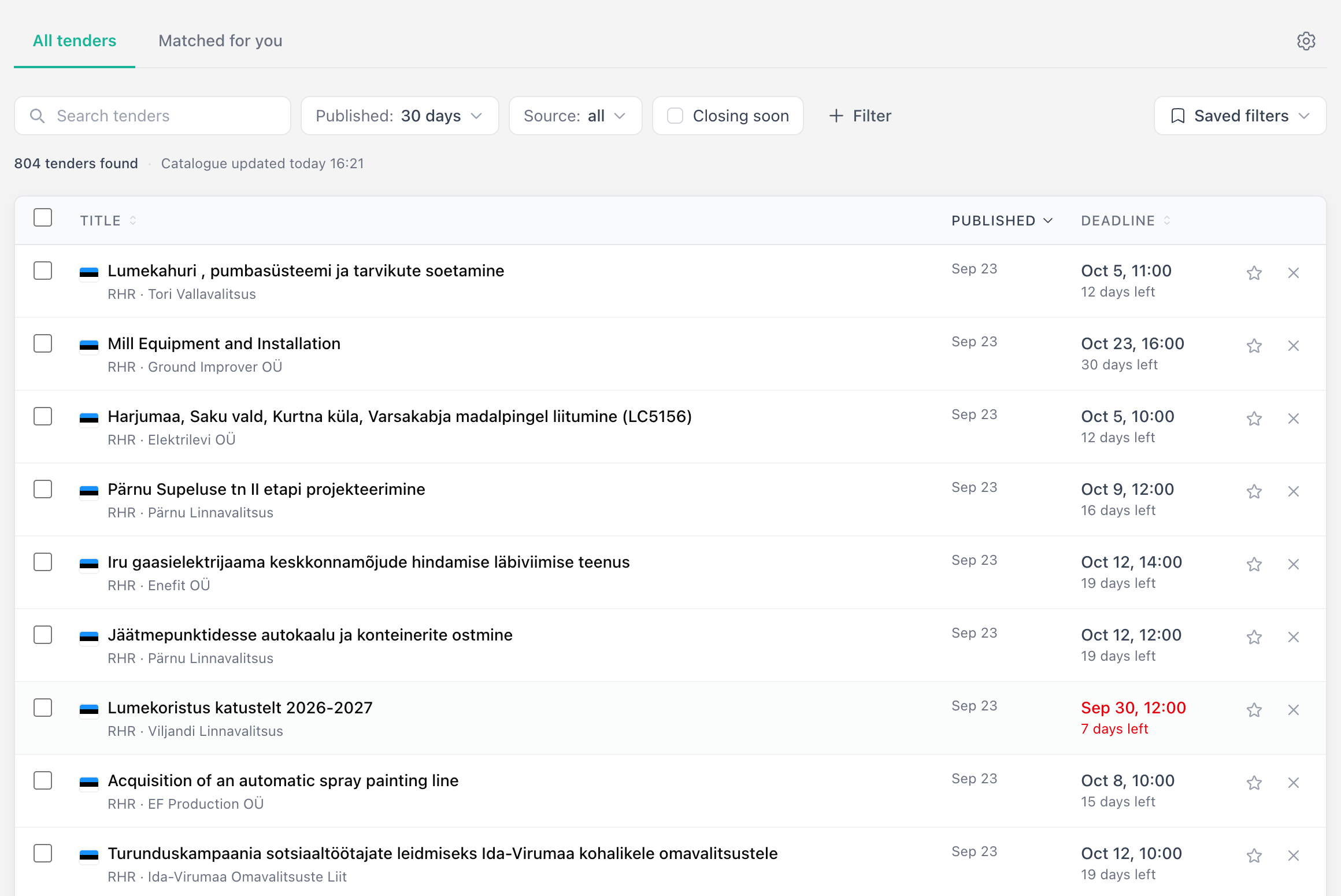
Click any tender to open its tender page. Use the star and the cross at the end of a row to shortlist or dismiss a tender. See Shortlisting and dismissing.
One row per procedure
A procedure is often published in more than one place, for example in the Latvian IUB and in EU TED. Tendergate shows it once. The source then reads "IUB · TED", and the tender page links to each publication.
Deadlines
- "12 days left" under the date. The date turns red when 7 days or fewer are left.
- Closes today on the last day.
- Closed once the deadline has passed.
- Not stated when the notice gives no deadline.
When a notice has no deadline of its own, Tendergate uses the earliest lot deadline. When a later publication of the same procedure extends the deadline, the later date is shown.
What counts as an open tender
A tender is open until its deadline passes. A tender with no deadline anywhere counts as open for 50 days after it was published. Closed tenders drop out of the lists, except the Shortlist and Dismissed views of your matched tenders.
Tender status
Different procurement portals use different words and codes for the same tender stages. Tendergate keeps the original notice type from the source, but also groups every tender into a simple status:
| Status | What it means |
|---|---|
| Open for bids | Suppliers can still participate or review the opportunity for submission. This is the default view. |
| Planned | Early information about a future procurement. The tender may not be ready for bids yet. |
| Awarded | The procedure has a result or award notice. These notices are useful for market research, but they are not new bidding opportunities. |
| Closed | The procedure or contract is no longer open for new bids. |
| Cancelled | The procedure was cancelled, withdrawn, or interrupted. |
| Not classified | The source sent a notice type we do not yet map confidently. We keep it visible when you filter by notice type. |
When a tender is no longer open, its tender page says so, for example "Bidding closed on Sep 18. Kept for reference."
Filtering
The filter row above the list has:
- Search tenders - free text search across titles and descriptions
- Published - 30 days, 7 days or 24h
- Source - the official source the notice came from
- Closing soon - only tenders whose deadline is within the next 7 days
- Filter - more filters:
- Country - lists each country once
- Industry / CPV code - filter by procurement category, for example IT services or construction
- Notice type - the procurement stage or business event. Choosing a notice type can show notices that the default view hides, such as awards
- Procedure type - open, restricted, negotiated and others
Active filters appear as chips that you can remove one by one. When a search returns nothing, Clear filters resets them.
Notice type categories use business-friendly labels:
| Category | Use it when you want to find |
|---|---|
| Open for bids | Active opportunities where suppliers can still submit bids. |
| Contract awarded | Award or result notices showing who won or how the procedure ended. |
| Contract modification | Changes to an existing contract after award. |
| Planned procurement | Upcoming or planned procurement before the full tender notice is published. |
| Concluded contract notice | Notices confirming that a contract has been concluded. |
| Preliminary market consultation | Early consultation notices used to gather market input before a procurement. |
| Prior information notice | Advance information about planned procurement activity. |
| Prior information (shortened timeframe) | Prior information notices that can shorten a later tender deadline. |
| Cancelled | Procedures that have been cancelled or withdrawn. |
| Voluntary ex-ante transparency | Notices published before a direct award or similar decision becomes final. |
| Contract in execution | Notices about a contract that is already being executed. |
Saved filters
When you've built a useful filter combination, click Save filter and give it a name like "IT tenders Latvia" or "Construction > 50K". Saved filters appear in the Saved filters menu and stay between sessions.
Example:
- Under Filter, add Country: Latvia and Industry / CPV code: 72.
- Click Save filter, name it "Latvia IT opportunities", and save it.
- Open Saved filters to return to the same filters later.
- To delete a saved filter, open Saved filters and use the delete button next to it.
Saved filters work on both the All tenders and Matched for you tabs.