Reviewing the tender
Tender documents, the tender passport, the Go / No-go decision, Needs attention and tender changes.
Before you prepare anything, find out what the tender asks for and whether it is worth bidding. This page covers Tender documents, the tender passport, the decision and Needs attention.
The Tender tab
Tender documents has five tabs of its own:
- Documents - the tender documents. For a bid started from a tender they are copied from the tender; otherwise upload them here. Use Add files to add a missing file.
- Requirements - every requirement read from the documents. Review and approve them: the checklist, the criteria and the passport are built from approved requirements. See RFP requirements.
- Criteria - how the buyer scores the bids.
- Lots - the lots of a multi-lot tender.
- Items - what the tender buys. See Items.
While a tender is imported, the Documents tab shows three steps: Get the files, Copy them here and Extract requirements. It usually takes a minute or two, and you can leave the page. A file that could not be imported is listed with the reason; download it from the source and add it with Add files. If your organization runs out of credits during the import, the files stay and the import waits: top up, then click Continue. If this month's AI limit is reached, the files stay too, but the import is paused with Monthly AI limit reached and there is no Continue. It can go on next month, or once an owner or admin raises the limit: the card then says Ready to continue, and you click Continue.
The tender passport
The tender at a glance on the Overview is the tender passport: the key facts of the tender in one place.
| Group | Fields |
|---|---|
| Key dates | Questions deadline, Submission deadline, Opening |
| Buyer and contract | Buyer, Estimated value, Contract term, Payment terms, Bid security |
| Evaluation and documents | Evaluation method, Documents to submit, Bid validity, Submission place, Lots |
| More details | Reference, Procedure, CPV, Contact |
Fields that need a look are listed first, under Needs a look.
Every value links to its source: the tender notice, a page of a tender document, or the person who entered it. Click a value to see the quote it came from. Nothing is guessed. A field the documents do not state stays empty.
Each field has a status:
- Found - the value is stated in the notice or the documents.
- Differs - the notice and the documents say different things. Check the latest amendment.
- Not found in documents - every file was read, but the value was not found.
- Not checked yet - the documents have not been read yet.
- Edited - a team member entered the value.
After the requirements are extracted, AI picks the free-text values (for example the payment terms or the bid security) from the extracted requirements. This uses credits and takes about a minute. Read again repeats it.
To correct a value, open it and click edit. Your value replaces what the sources say, and later document updates do not overwrite it. Reset to document value brings the source value back. The deadlines in the passport drive the time line and the deadline reminders.
Go / No-go
When the documents are read, Do we bid? appears on the Overview with four facts:
- Relevance - the tender's score from your tender scoring. A bid you created yourself has no notice to score.
- Eligibility - requirements your company may not meet. See Eligibility check.
- Risks - open high risks from Needs attention.
- Time - days left until the submission deadline.
Choose Go or No-go, write the reason (required) and click Record decision. Discuss first opens a decision thread for the team.
No-go keeps every file and thread, removes the tender from your matched list and stops automatic preparation. You can change the decision later with Change in the Decision panel. The same panel shows the owner and the Bid status.
Needs attention
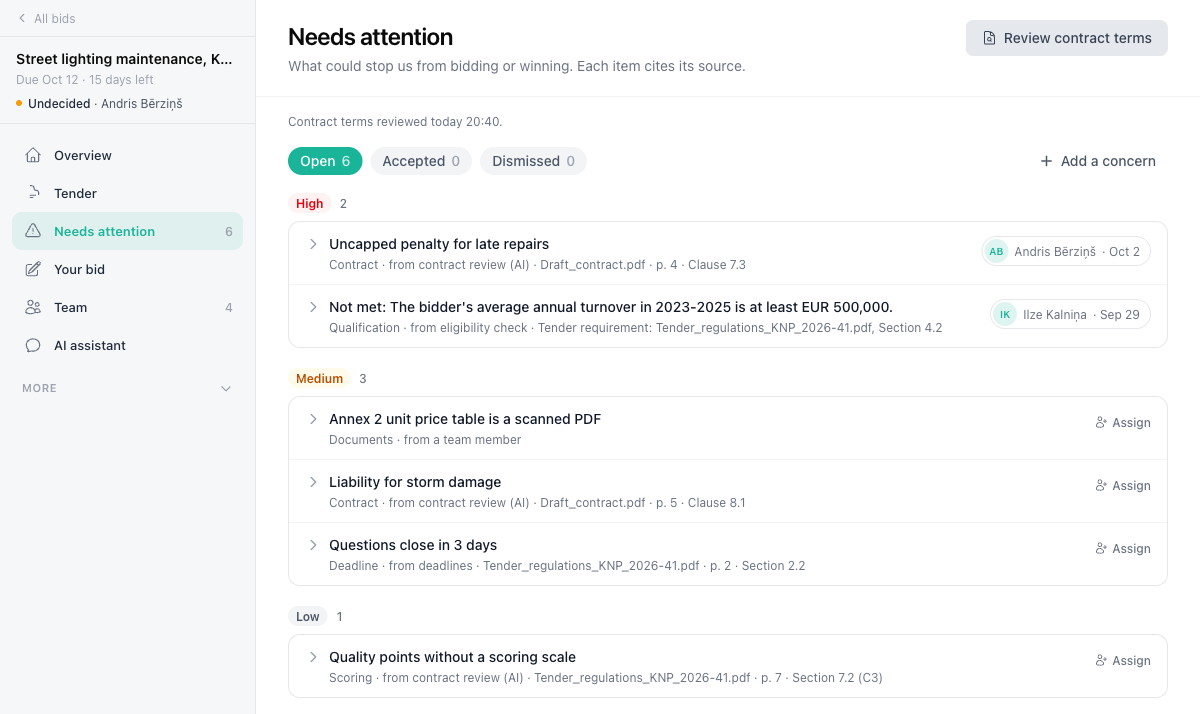
Needs attention lists what could stop you from bidding or winning. Each item says where it comes from:
- eligibility check - a requirement your company profile or library evidence does not meet
- tender passport - a fact the notice and the documents state differently, or one the documents do not state
- deadlines - questions to the buyer close within 3 days, or bids are due within 7 days
- library - evidence in your library expires before the submission deadline or during the contract
- contract review (AI) - harsh contract or scoring terms (see below)
- a team member - a concern someone added with Add a concern
Items are grouped by severity (High, Medium, Low). Open an item to see why it matters, the recommended action and the source quote. What you can do with an item:
- Accept risk - you will bid anyway. Add an optional note, for example "the penalty is priced into our offer". The item moves to Accepted.
- Dismiss - it does not need action. A reason is required. The item moves to Dismissed.
- Reopen - bring an accepted or dismissed item back.
- Assign - make it a task, question or decision for a colleague. See Work items.
Items update when the tender or your data changes. An item whose cause goes away is closed automatically.
Contract-terms review
Click Review contract terms to have AI read the contract and scoring requirements of the tender. It flags harsh terms: penalties, liability, guarantees, payment, intellectual property, exclusivity and unusual scoring. Each concern cites its requirement.
The review takes about a minute and uses credits. A failed review is not charged. When you run it again, concerns from the last review keep their status, and open or accepted concerns the new review no longer reports move to Dismissed.
Tender changes
For a bid started from a tender, Tendergate watches the tender after the import. When the buyer publishes new or changed files, moves the deadline, changes the estimated value or cancels the procedure, the Tender documents item in the sidebar shows a dot, the bid shows the banner The tender changed, and the team gets an email.
- Import changes copies the new files and extracts the requirements again. The Requirements tab then shows what changed. When the files changed, the extraction uses credits.
- Dismiss hides the banner until the next change.
Check for updates on the tender documents checks the tender right away.
The tender page in the catalogue shows the same changes in its change history.