Working as a team
The bid team, tasks, questions and decisions, My work, deadline reminders and auto-prepare.
A bid usually needs several people: someone for pricing, someone for the technical offer, someone who signs. The Team page shows who works on the bid and what is waiting for whom.
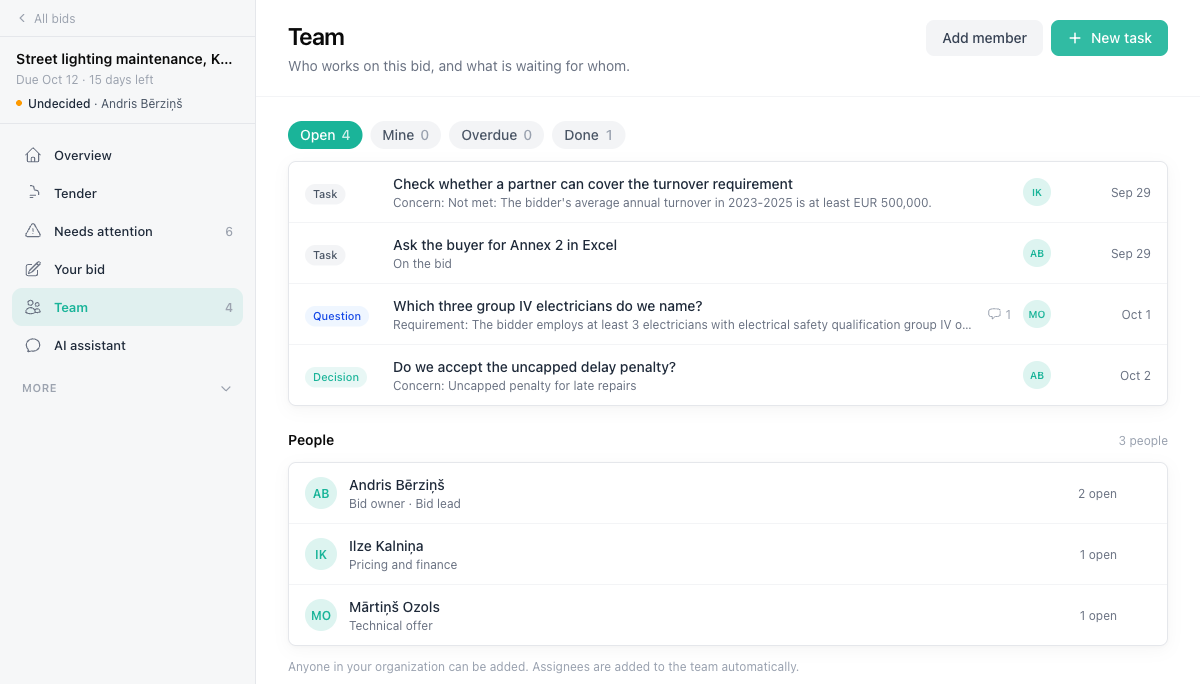
The team
People lists everyone on the bid with their responsibility, for example "Pricing and finance", and how many items they have open. The bid owner is always on the team.
- Add member adds anyone in your organization. Add a responsibility so everyone knows whom to ask.
- People you assign work to join the team automatically.
- To hand the bid to someone else, change the Owner in the Decision panel on the Overview.
Work items
A work item is one of three kinds:
- Task - something that needs doing, for example "Get the signed declaration from the board".
- Question - something you need a colleague to answer.
- Decision - something the team needs to decide. It is closed with Approve or Reject.
Create a work item with New task on the Team page, or with Assign on the thing it is about: a requirement, a concern in Needs attention, a tender passport field or an issue in What to fix. The item then keeps a link to that source and a snapshot of what it said. Give it a short title, an assignee and a due date. The assignee gets an email with a link to the thread.
Open an item to work on it:
- Reply adds a message to the thread.
- Attach files adds certificates, images or documents: up to 10 files, 50 MB each. Save to library keeps a useful attachment in your library.
- Resolve closes a task or question. Any text you wrote becomes the resolution note.
- Approve or Reject closes a decision, with the text as its note.
- Cancel item closes an item that is no longer needed. Reopen brings a closed item back.
The Team page filters items by Open, Mine, Overdue, Done and Cancelled. Closed items keep their threads.
My work
My work in the top navigation lists the open items assigned to you across all bids and procurements of your organization, grouped into Overdue, Due in the next 7 days, Later and No due date. Items you closed in the last 7 days are listed below. My work is always there for organizations that bid; elsewhere it appears while something is assigned to you.
Emails and deadline reminders
Team emails tell you when:
- someone assigns you a task, question or decision
- someone replies to an item you are on, or resolves it
- items assigned to you are due or overdue (one daily list)
- a bid deadline is close: 5 days and 1 day before the questions deadline and the submission deadline
Deadline reminders go to the bid owner and the team members, while the bid is live: not No-go and not yet submitted. The dates come from the tender passport, including a value your team edited.
To stop these emails, go to Account settings → Notifications and turn off Team emails. Tender match emails are not affected.
Auto-prepare
Auto-prepare creates bid workspaces for your best-matching tenders, so the team starts from a prepared bid. It runs after each tender scoring run. Set it up in the tender selection and scoring settings under Auto-prepare bids:
- Prepare bid workspaces automatically - turns it on.
- Relevance at least - the lowest relevance score (0-100) a tender needs.
- At most per day - the most relevant tenders come first.
- Bid owner - who owns the prepared bids.
- Also extract the requirements (uses credits) - extract the requirements of each prepared tender right away. Without it, the requirements are extracted when someone clicks Extract requirements in the bid.
Auto-prepare skips dismissed and closed tenders and tenders that already have a bid workspace. It never decides and never drafts. A morning email to the bid owner, owners and admins lists what it prepared, and these bids are marked Auto-prepared in the Bids list.
Auto-prepare needs tender scoring. Saving the auto-prepare settings turns scoring on.
Receipts and verification
What a submission receipt shows, how to download and verify it, how to check your files' fingerprints, and what happens when Tendergate is down close to a deadline.
Market research
AI-powered web research to discover products, suppliers, pricing, and regulations for your procurement needs.