Two-factor authentication
Protect your account with an authenticator app or a passkey, keep backup codes, and require two-factor authentication for your whole organization.
Two-factor authentication adds a second step when you sign in. After your password, or after Continue with Google, Tendergate asks for a code from your phone or for a passkey. Someone who learns your password still can't get in.
You can use:
- Authenticator app - 6-digit codes from an app such as Google Authenticator or 1Password.
- Passkeys - your fingerprint, face or device PIN. A passkey also lets you sign in without a password.
- Backup codes - single-use codes for when you don't have your phone or passkey.
Turning it on
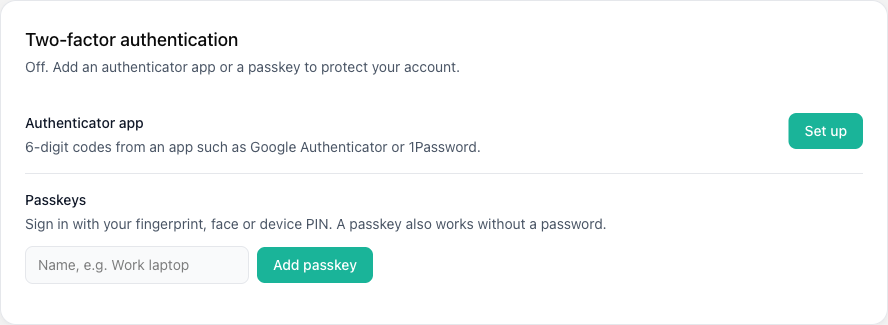
Open Account settings → Security. The Two-factor authentication card shows whether it is on.
Authenticator app
Next to Authenticator app, click Set up.
Scan the QR code with your authenticator app. If you can't scan it, enter the key shown under the code instead.
Enter the 6-digit code the app shows and click Turn on.
Passkey
Under Passkeys, give the passkey a name, for example "Work laptop", and click Add passkey. Your browser or device then asks for your fingerprint, face or PIN. You can add several passkeys, for example one for each device. Tendergate emails you each time a passkey is added.
Backup codes
When you turn on your first method, Tendergate shows 10 backup codes. This is the only time they are shown, so click Download as text or copy them somewhere safe. Each code works once. The card shows how many unused codes you have left, and New codes replaces them all.
Signing in
After your password or Google sign-in, Tendergate asks for the second step:
- enter the code from your authenticator app and click Verify, or
- click Use a passkey, or
- click Use a backup code and enter one of your codes.
Tick Remember this device for 30 days to skip the second step on this browser. Changing your password or turning two-factor authentication off ends this for every device.
After 5 wrong codes, Tendergate stops accepting codes for 15 minutes. Wait, then sign in again.
Sign in with a passkey
On the sign-in page, click Sign in with a passkey. You don't type your email or password: the passkey counts as both steps.
Resetting your password
When two-factor authentication is on, a password reset does not sign you in. After you set the new password, sign in with it and complete the second step.
Removing a method
Click Remove next to your authenticator app or a passkey. To confirm, enter your password or a current code; a backup code also works. New codes asks for the same confirmation.
When you remove your last method, two-factor authentication turns off, your backup codes stop working, and Tendergate emails you.
If you get an email about a change you didn't make, contact info@mitigate.dev right away.
Requiring it for your organization
Owners and admins can require two-factor authentication for everyone in the organization:
- Turn on two-factor authentication for your own account first.
- Open Account settings → Organization.
- Under Two-factor authentication, tick Require two-factor authentication for all members and click Save.
Members without two-factor authentication are then sent to the Security page until they set it up. This applies only in this organization. The 2FA column under Account settings → Members shows who has it on.
Turning the requirement on or off is recorded in the audit log.
If you lose your phone or passkey
Sign in with a backup code, then set up a new method and remove the old one.
If you have no backup codes left, email info@mitigate.dev. After we verify who you are, we reset two-factor authentication on your account and email you. Then set it up again under Account settings → Security.