Compare prices and award
Compare the opened bids item by item, record and approve the award decision, notify bidders, record the contract and keep the evidence package.
After the bids are opened (or, for an open tender, after the deadline), the Award tab and the price grid let you choose the winner and tell every bidder.
The price grid
The price grid is the Prices tab of the bid comparison. Open it with Prices on the Evaluation card of the publication's Overview, or with Compare prices on an open tender's Bids received card. It shows the prices per item from every opened bid, excl. or incl. VAT as the tender asked.
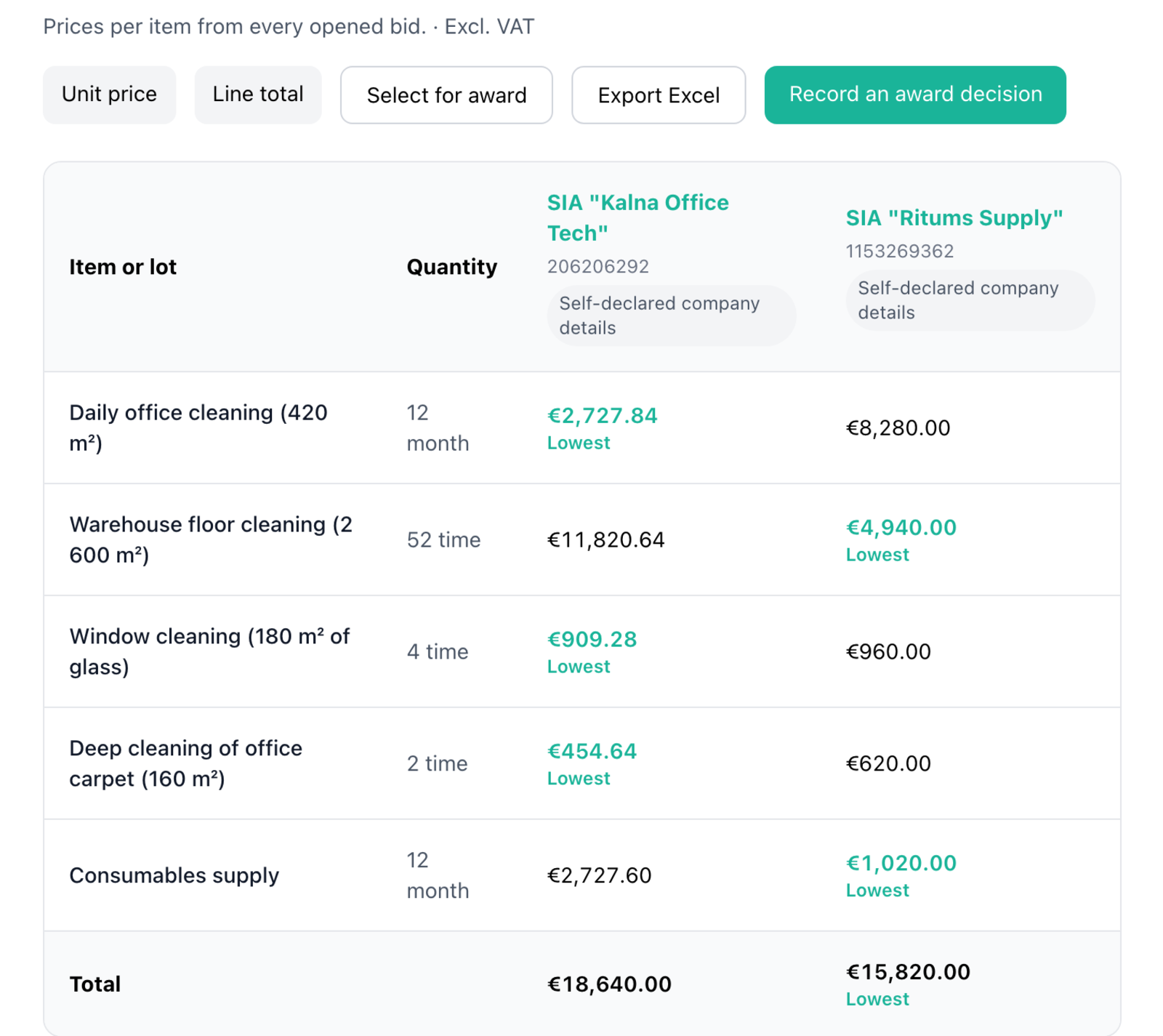
- One column per bidder, with the company name (linked to its bid), the receipt number and the company verification.
- Unit price or Line total switches what each cell shows.
- The lowest price in each row, and the lowest total, are marked Lowest. Equal prices are marked "Tie — choose according to the tender rules".
- Not priced marks an item a bidder left empty; a total with a missing price reads Incomplete.
- With lots, there is one grid per lot.
- If you ran bid analysis, a Requirements (from analysis) row links to the results.
- If an amendment changed items after a bid was submitted, the bid is marked "Priced against version" with the number. Submitted prices never change; figures at amended quantities are only estimates for comparison.
- Export Excel downloads the grid.
Select for award
Click Select for award to pick the winners in the grid: one bid per item, per lot, or for the whole tender, as set under What can be awarded. When you award per item or per lot, Select lowest in every row picks the lowest price everywhere. The line under the grid counts the selected bidders, items and the total. Continue to award opens the award decision with your selection.
The award decision
Click Record an award decision (in the price grid or on the Award tab).
- Winner. For each line (the whole tender, each lot separately or each item separately), choose the winning bid, or leave it unawarded. The amount comes from the bid and cannot be changed here.
- Reasons for each bidder. Advantages of the selected offer is shared by all notices and is prefilled, for example "Lowest total price: EUR 15,820.00". Each bidder also gets its own Reasons, prefilled from the grid, for example "Total price EUR 18,640.00, EUR 2,820.00 higher than the selected offer". The outcome (selected, partly selected or not selected) is set automatically. Each notice also has an Appeal route: for a private purchase it reads "No formal appeal route applies."; otherwise write the appeal route that applies to your purchase.
- Decision notes (internal) and an optional Decision document.
- Click Save draft.
Any member who can read the opened bids can prepare the decision. An owner, admin or the procurement owner approves it: click Preview notices and approve to see each bidder's notice and what the tender page will show, then Approve and notify bidders. Others see "Ask an owner, admin or the procurement owner to approve."
Notifying bidders
When the decision is approved, every opened bidder gets an email with its outcome, the reasons, the advantages of the selected offer and the appeal route. Bidders also see the result on their bid page. The tender's status becomes Awarded.
An approved decision cannot be edited. To change it, use Replace with a new decision and say why; the reason is sent to the bidders, and they are notified again. Once a contract is recorded, the decision can no longer be replaced.
Ending without award
If you will not award, for example because no bid fits, click End without award on the Award tab and write the reason. Bidders are notified, and the status becomes Ended without award. When no bids were received at all, you can also Duplicate and publish again.
Contracts
Under the approved decision, the Contracts card records the contract: Contract signing date, Contract value and an optional Contract file (up to 25 MB). Click Record contract. To record a later change to the contract, add a new entry with the Reason for the change.
Results on the public page
What becomes public after the award follows the rules that apply. Before you approve, the dialog shows exactly what the tender page will say.
- Private purchase: only what you chose under After the award in the settings. With Show the winner and contract value on the tender page, the page says, for example, "Awarded to SIA Example on 20 Oct 2026. Contract value EUR 15,820.00." Without it: "This tender is closed. The buyer has made a decision."
- Other rules: the winner and the contract value are public, as these rules require.
- Invite-only tenders show nothing about the result publicly.
The evidence package
The evidence package is everything needed to show how the tender ran, for example for an audit or a complaint. Owners, admins and the openers can create it once the bids are opened, after the award or the end without award, or after a cancellation. An open tender has no evidence package.
On the publication's Overview, click Create evidence package. When it is ready, click Download (ZIP, size). The card also shows the package's SHA-256 and when it was generated.
The ZIP contains:
- an index page that summarizes the tender: the overview, items, published documents, the procedure log, questions and answers, amendments, invitations, every bid version and withdrawal with its signed submission receipt, the opening record, the decision and any exclusion checks;
- the same records as JSON files, which are the record: if the index page and a JSON file differ, the JSON file counts;
- the signed receipts, the public keys to check their signatures, and the encrypted originals of the bids;
- a verification report of the checks run when the package was made;
- README.txt, which explains step by step how to check the SHA-256 fingerprints of every file and the receipt and log signatures.
Record retention
Tendergate keeps a tender's records for the retention period the rules set. The Record retention card on the Overview shows until when they are kept. Typical periods are 5 years from the award for a private purchase and 5 years from the contract for an MK 104 purchase; your funding agreement may require longer. The Rules that apply panel shows the period for each tender.
These records belong to a published tender and are kept for the legal record, so they cannot be deleted, even if members leave. If the last member deletes their account, the organization is archived and the records stay until the retention period ends.
MK 104 procedures
A regulated procedure under Cabinet Regulation No. 104 adds these steps after the opening:
- Exclusion checks. Before the decision can be approved, record your own check of each opened bid under Exclusion checks: the rule, the source (EIS e-izziņa, Register or Manual), the date, the result (Clear, Excluded or Indeterminate) and optional evidence. Register screening in Tendergate is only a hint. Every selected bidder needs the result Clear.
- Rounds. Under Rounds, ask selected bidders for final offers or open a negotiation round. Each round is sealed and opened like the first one, and earlier offers stay as they were. An opener confirms the round with their opening key.
- Duties. The Duties card lists what the rules require, with due dates and reminders: inform all bidders of the decision within 5 working days (done when you approve and the notices are sent), publish the results notice in the IUB publication system within 5 working days of signing the contract, and republish amendments there. Click Mark done when you have done one.
- Only openers and evaluators can see the bid prices and the award decisions.