Setting up a procurement
Creating your project workspace and getting organized before analysis.
A procurement is your workspace for one purchasing process. Everything lives here - the RFP (uploaded or composed), its items and market research, vendor bids, analysis results, comparisons.
Creating a new procurement
Click + New procurement in the sidebar. You'll see a modal with the following fields:
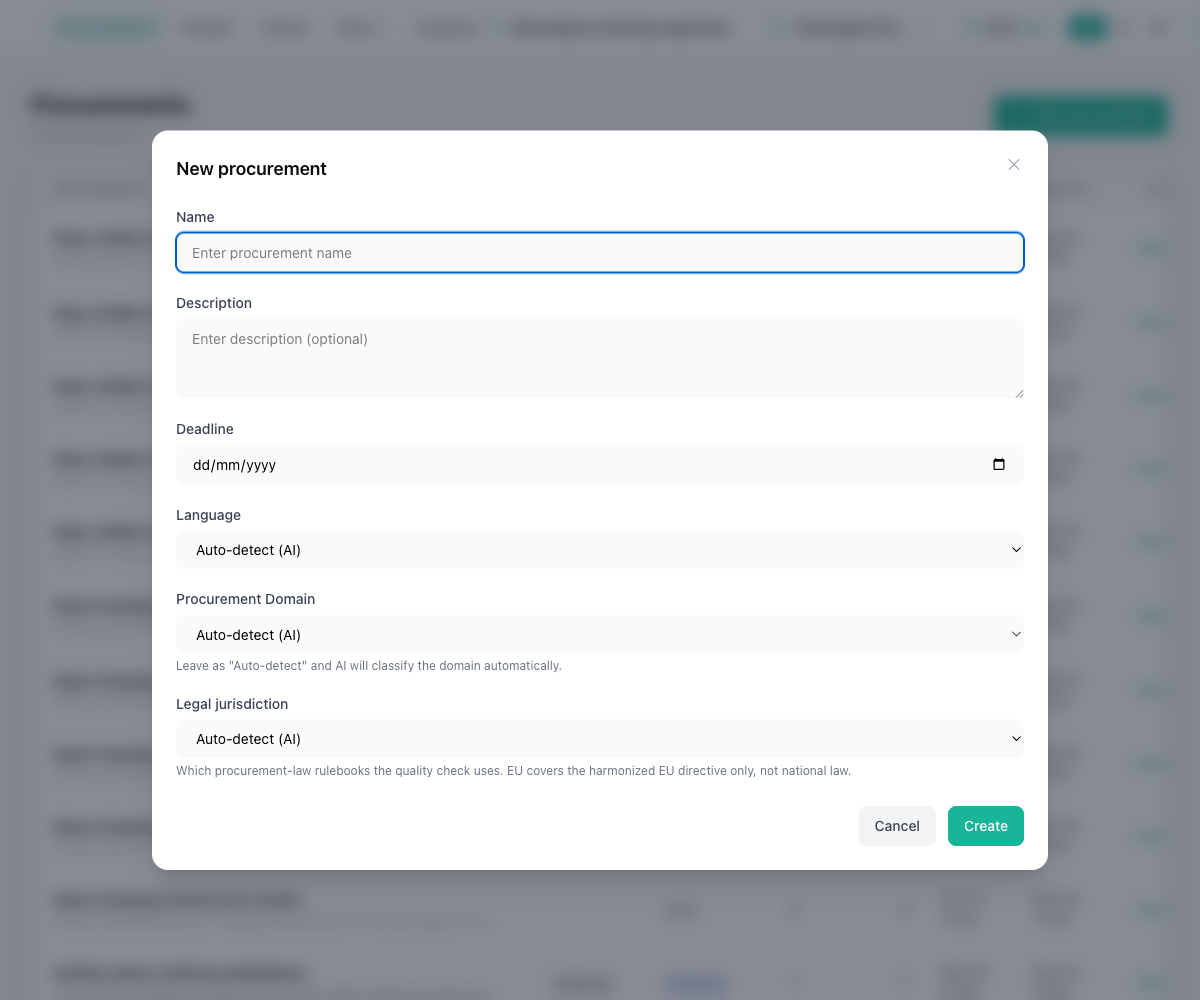
- Name - something descriptive. You'll see these listed in the sidebar, so "IT Infrastructure Q2 2026" is better than "Procurement 1".
- Description (optional) - add context if you want. Useful when you have many procurements running at once.
- Deadline (optional) - for your own tracking. The system doesn't enforce this, it's just a reminder.
- Language - this tells the AI which language to use in its analysis report. English, Latvian, and German are listed first because the interface and exports are fully translated into them; every other EU language is available below. Leave it on "Auto-detect" and the AI picks the language your documents are written in.
- Procurement domain (optional) - if your procurement belongs to a specific industry like construction, you can select it here. The AI will apply industry-specific compliance rules during analysis. Leave it on "Auto-detect" and the AI will figure it out from your RFP. See domain-specific knowledge for details.
- Legal jurisdiction (optional) - which procurement-law rulebooks the quality check applies. Leave it on "Auto-detect" and the AI infers it from the documents.
Hit Create, and you'll land on your new procurement workspace. There is no analyse-or-compose choice to make up front: the same workspace holds an uploaded RFP and a composed one, and you can add bids to either.
The guided workflow sidebar
When you open a procurement, the left sidebar shows a guided workflow — steps that take you through the entire procurement analysis process. The steps are grouped into sections you can expand:
| Group | Steps inside | What it covers |
|---|---|---|
| Overview | — | Dashboard with summary stats and quick actions |
| RFP | Documents, Compose, Requirements, Items, Evaluation criteria, Lots, Quality check, Integrity check | Everything about your requirement documents — see below |
| Market research | Suppliers, Prices, Report | Supplier discovery and prices for the procurement's items — see Market research |
| Preparation | Prep checklist | A readiness checklist built from your approved requirements |
| Bids | — | Upload and manage vendor bids |
| Analysis | Analyze bids, Compare & Export | Run AI analysis and compare results side by side |
| Assistant | — | Ask questions about your documents — see Assistant |
Open the RFP group to see the tabs that turn your raw documents into structured requirements:
| Tab | Required? | What it does |
|---|---|---|
| Documents | Yes, unless you compose | Upload and manage your requirement documents |
| Compose | Alternative to uploading | Draft the RFP document set with the AI agent and finalise it as this procurement's RFP — see Composing an RFP |
| Requirements | Optional | Extract, review, and approve a structured list of every requirement in the RFP — see RFP requirements |
| Items | Optional | Extract and approve the products and services the procurement is buying, as the input for market research — see Items |
| Evaluation criteria | Optional | Scoring and qualification rules, built from your approved requirements |
| Lots | Optional | Multi-lot procurement structure, drawn from your approved requirements |
| Quality check | Optional | AI reviews your RFP for clarity and completeness |
| Integrity check | Optional | AI checks the RFP for contradictions, fairness issues, and missing information |
Each step shows a status indicator:
- Green checkmark — completed
- Colored dot — active/available
- Spinning loader — currently running (e.g., analysis in progress)
- Red X — failed (can be retried)
- Dashed circle — not yet available (prerequisites not met)
Suggested next
At the top of the workflow, a "Suggested next" banner tells you the most logical next action based on your current progress. After uploading your RFP, it points you to extract RFP requirements — the step that builds the structured requirement list everything else draws from. Follow the suggestions and you'll never get lost.
Bids section
Below the workflow steps, you'll see a Bids section listing all vendor bids. Click the + button to add a new bid, or click a bid name to view its documents and analysis results.
The top bar
The top bar is always visible and gives you quick access to:
- Console — your home dashboard with recent activity and quick-start actions
- Organization switcher — switch between organizations (if you belong to multiple)
- Credits — your current balance and a Buy button
- Language toggle — switch the interface between English, Latvian, and German
- Tools — the RFP quality check, market research, funding research, and the supplier register
- User menu — profile settings, AI provider selection, admin panel, documentation, and sign out
Editing and deleting
You can edit a procurement's name, description, deadline, and language at any time from the Overview page. Click Edit in the top-right actions.
Deleting a procurement permanently removes it from your workspace. All uploaded documents, bid files, and analysis results are deleted and cannot be recovered. Credit usage history is preserved for billing transparency. Export any results you want to keep before deleting.
A note on organization
If you're working on a large procurement with multiple lots, you still create one procurement for the whole thing. Lots are configured inside the procurement (via the Lots step in the sidebar), not as separate procurements. See evaluation criteria and lots for details.