Preparation checklist
A readiness checklist built from the requirements you approve.
The preparation checklist is a readiness roadmap — everything a bidder needs to prepare before submitting. It's built directly from your RFP's requirement ledger: every bidder obligation you've extracted and approved becomes a checklist item, organized by category and priority.
Because it's a projection of approved requirements, the checklist stays in sync with what's actually in your RFP — it's not a separate free-form AI pass.
How to build the checklist
Click Prep Checklist in the sidebar workflow, then Sync from requirements. The platform takes the bidder obligations from your approved requirements and (re)builds the checklist from them.
If you haven't extracted requirements yet, you'll be sent to the RFP requirements step first — extract and review them there, then come back and sync. Whenever your requirements change, sync again to refresh the checklist.
Syncing the checklist is free — it doesn't cost any credits. (The work of reading your RFP happens once, during requirement extraction.)
Reading the checklist
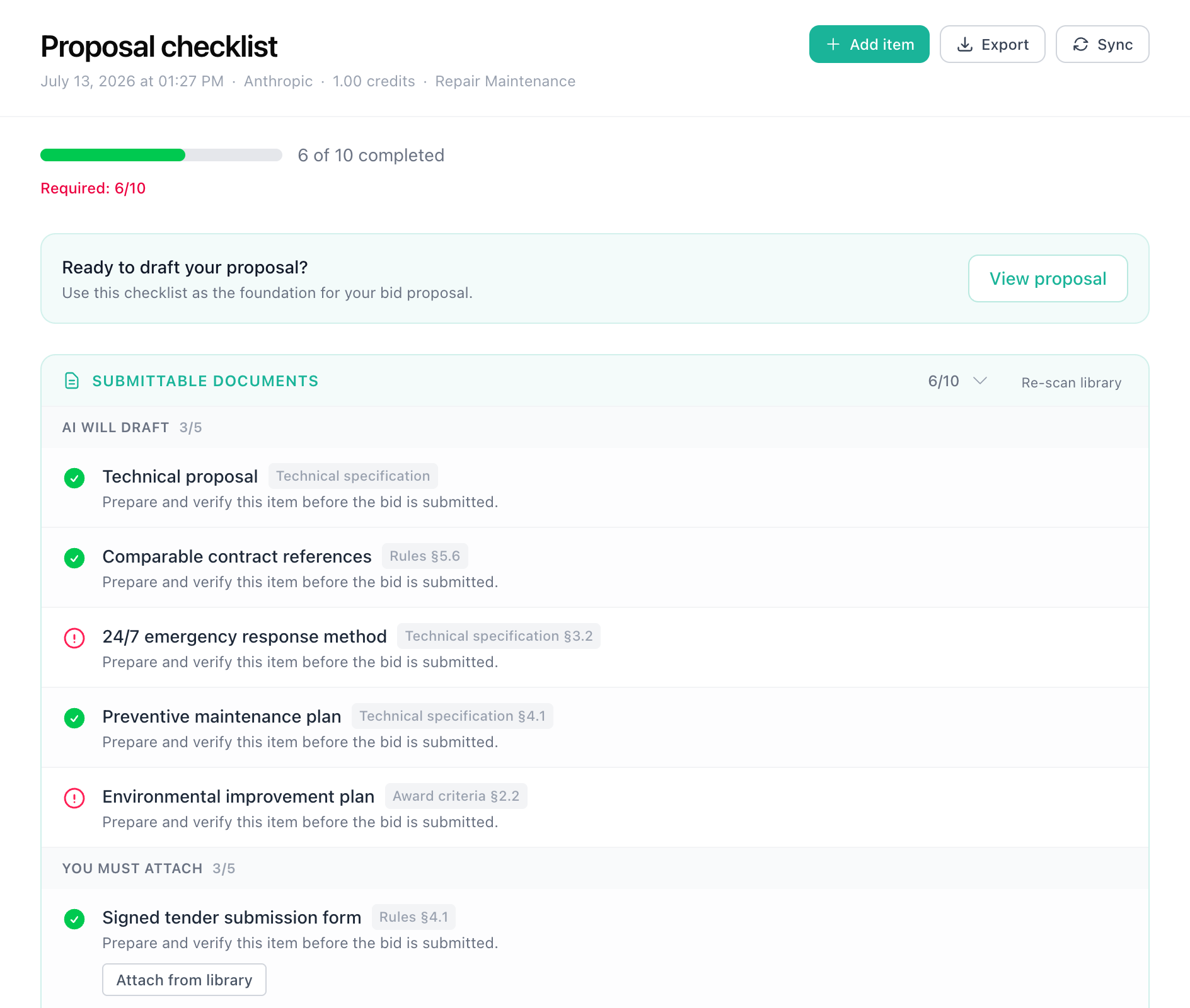
The checklist page has a two-panel layout: the checklist items on the left and the agent activity feed on the right.
Priority breakdown header
At the top you'll see a summary showing how many items fall into each priority level and your completion progress:
| Priority | Color | Meaning |
|---|---|---|
| Required | Red | Must be done before submission. Missing these means non-compliance. |
| Recommended | Yellow | Strongly suggested. Skipping these weakens your bid. |
| Optional | Green | Nice to have. Include if time permits. |
Category cards
Items are grouped into collapsible category cards (e.g., "Certifications & Compliance", "Technical Proposal", "Service & Maintenance", "Contract Terms"). Each card shows:
- The category name
- How many items it contains
- Progress indicator — how many you've marked as done
Click a card to expand or collapse it and see its items.
Item details
Each checklist item has:
- Checkbox — mark it as done
- Title — what you need to prepare
- Priority badge — required, recommended, or optional
- Progress bar — shows completion status visually
- Description — more detail on what's expected (expand the item to see this)
- Source requirement — each item traces back to the specific approved RFP requirement it came from, including a reference and a quote from the original document
Because every item links to its source requirement, you can always check the exact wording the obligation is based on.
Using the checklist
Marking items done
Click the checkbox next to any item to mark it as completed. Your progress is saved automatically. The progress indicators in the category cards and the priority breakdown header update in real time.
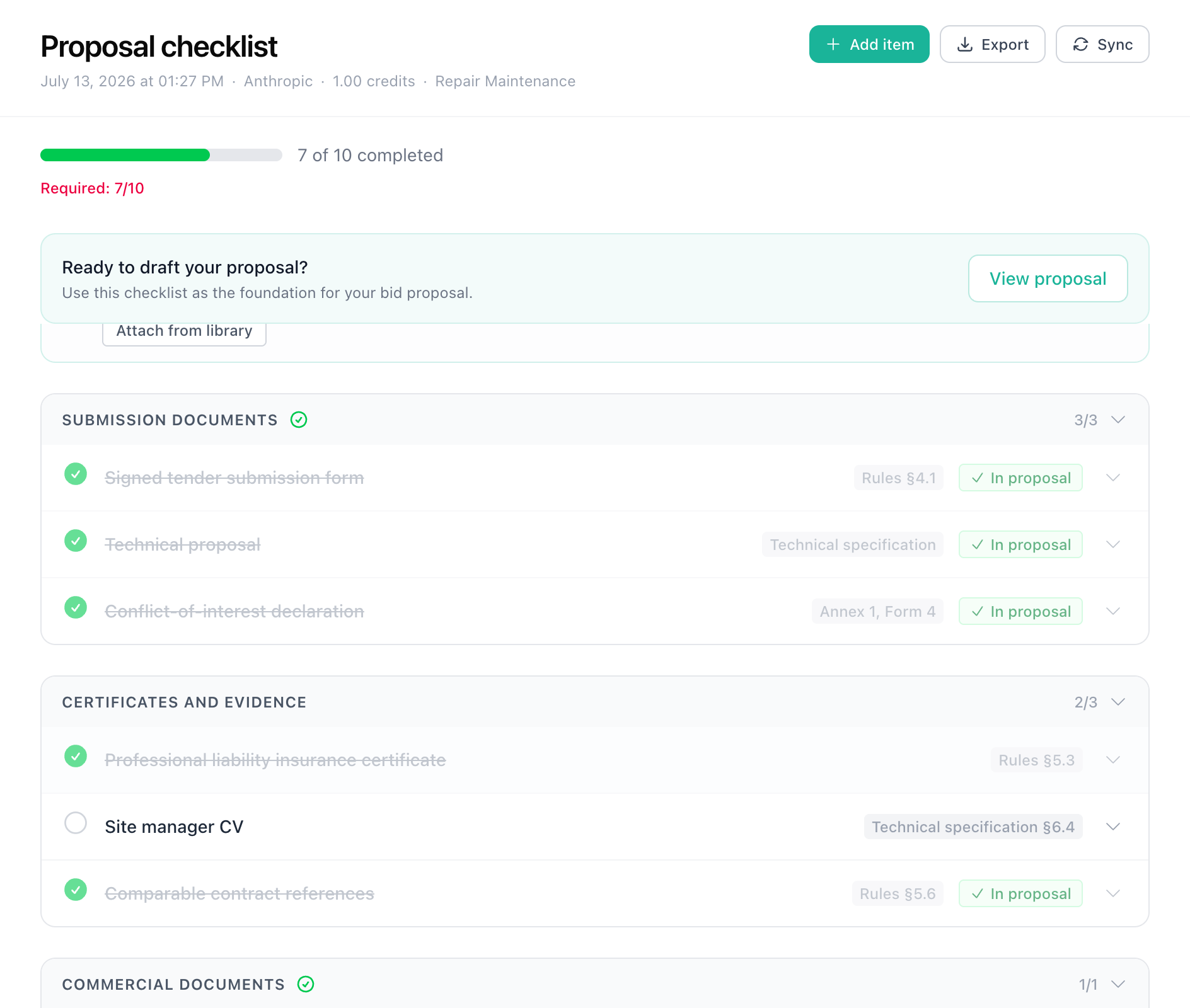
Tracking progress
The priority breakdown header at the top gives you a quick overview:
- How many required items are done vs. total
- How many recommended items are done vs. total
- How many optional items are done vs. total
This helps you focus — get all required items done first, then work through recommended, and finally optional if you have time.
When all items are complete, the sidebar shows a green checkmark next to "Prep Checklist".
Tips
- Start with required items. These are non-negotiable. If you miss a required item, your bid may be rejected outright.
- Use the source requirements. Each item points back to the approved requirement it came from, with a quote from the RFP. If an item seems unclear, read the original requirement.
- Approve requirements early. Extract and review your RFP requirements as soon as your documents are uploaded, then sync the checklist — not the day before the deadline.
- Re-sync after changes. If you re-extract or edit requirements, sync again so the checklist reflects the latest obligations.
- Share with your team. Everyone in the organization can see the checklist and mark items as done.