Your bid
Bid versions, checks against the tender, the package, submitting and recording the result.
Your bid holds your own bid documents. It has four tabs: Versions and checks, Checklist, Draft with AI and Package.
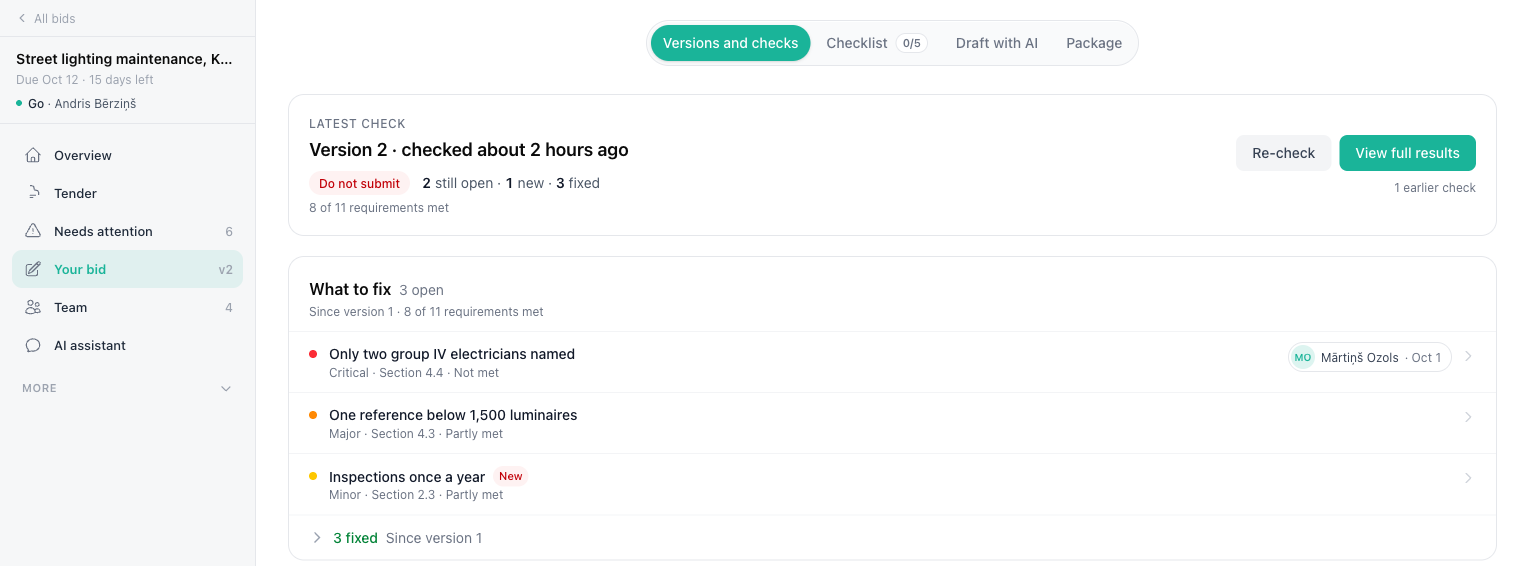
Versions and checks
Upload every document of your bid, including the technical and financial parts, so the check reads all of it. Your bid starts as version 1. The sidebar shows the current version next to Your bid, for example v2.
Starting a new version
When you correct the bid, click Upload new version:
- Untick the files you are replacing or dropping under Files to keep from version 1. Unticked files are not deleted: they stay as the record of the earlier version, so its check still shows what it read.
- Optionally describe the change under What changed?, for example "corrected price table and signed declaration".
- Start the new version, then upload the new or corrected files into it.
When you apply changes from the quality check in Draft with AI, the next version starts on its own: the re-drafted documents go into it, and its card says Drafted with AI.
Each version card shows who created it, when, its note, its latest check and its files. Add files adds files to the current version without starting a new one.
Checking your bid
Click Check your bid to check the current version against every tender requirement. The check uses credits and takes a few minutes. You can leave the page; the result appears on the Latest check card. Import or upload the tender documents first: the check compares your bid with them.
The Latest check card shows the recommendation, how many requirements are met, and how the check compares with the previous one:
- still open - issues found in both checks
- new - issues found only in the latest check
- fixed - issues from the previous check that the latest check confirmed as met
What to fix lists the open issues by severity (critical, major, minor), each with its requirement and verdict. An issue from the previous check that did not come back, but that the latest check could not confirm as met, is marked Fix not confirmed. Requirements the check could not verify from the files are listed apart, because nothing was found wrong. Use Assign on an issue to hand it to a colleague.
View full results opens the full report with every finding and quote. See Understanding results. Re-check runs a new check, for example after you changed files.
Checklist
The Checklist tab lists the documents and forms the tender asks you to submit. It is built from the approved requirements: click Build checklist once the requirements are approved. Building it does not use credits. Tick items off as you prepare them. See Preparation checklist.
Draft with AI
Draft with AI plans, drafts and reviews the bid documents against the requirements. See Composing a bid. Drafting uses credits. If you uploaded your bid instead, upload corrections as a new version on Versions and checks.
Package
The Package tab answers "Ready to submit?". It lists what to check before you submit:
- checklist items you have not confirmed yet
- required documents not covered by a draft or attached evidence
- critical or major findings still open in the latest check
- library evidence that is a draft or has expired
- files changed since the latest check
What's in the package lists the files of the current version and the library annexes, and what was left out and why. Download draft package (ZIP) downloads them as one archive.
For a tender on a procurement portal, Tendergate does not submit the bid: you submit it on the portal and record it here. Tenders published on Tendergate take your bid on Tendergate itself; see Bid on a Tendergate tender.
Marking the bid as submitted
When you have submitted on the portal, click Mark as submitted. If readiness checks still need attention, Tendergate asks you to confirm. The bid status changes to Submitted, and the submitted version is frozen: it stays exactly as you sent it. To change anything after submission, upload a new version. It is a separate draft, so material from after the submission, such as clarification documents, never mixes with the submitted package.
Recording the result
When you hear back from the buyer, click Record result on the Overview, or change the Bid status in the Decision panel. Choose Won, Lost or Withdrawn, and optionally write why, for example the buyer's reasons, the price gap or what to do differently next time. Click Save result. The result then leads the Decision panel, and the bid moves to Archive in the Bids list.