Selection and scoring settings
Tell Tendergate which tenders to pick up and how to score them - CPV codes, keywords, countries, relevance criteria and thresholds.
Open the settings with the gear icon at the right end of the All tenders / Matched for you tabs. The page has five sections: Selection profile, Services, Scoring, Eligibility and Company profile.
Owners and admins can change the settings. Members see them read-only.
Getting started
Under Selection profile, pick your CPV codes with Browse CPV codes. Add Keywords if you also want tenders outside those categories.
Under Services, describe what your company offers with Add service. Be specific: "Custom web application development using React and Ruby on Rails" works better than "Software development".
Click Save and recalculate. Tendergate scores recent open tenders, and the results appear under Matched for you. From then on, new tenders are scored every night.
Selection profile
The selection profile decides which tenders get scored at all.
- CPV codes - tenders in these categories are scored.
- Keywords - tenders outside your CPV codes are also scored when what they buy matches a keyword. Keywords are matched by meaning, in any language: the Latvian keyword "optiskais tīkls" (optical network) also finds a German tender to build a "Glasfasernetz". Up to 20; press Enter after each one.
- Negative keywords - a tender whose main subject matches a negative keyword gets relevance 0 and moves to the Excluded view, with the keyword as the reason. Up to 20.
- Countries - only tenders from these countries are checked. Leave it empty for all countries.
- Preferred countries - tenders from these countries are scored as usual. Tenders from any other country lose the points set in Points off for other countries (15 by default), so they reach high relevance only on a very close match. For example, with a threshold of 75 and 15 points off, a tender from another country needs 90 before the deduction. Leave the list empty to score all countries the same.
A tender picked up by a keyword shows "Found by: keyword “…”" on the list, so you can tell it apart from a CPV match.
Services
Each service or product you add is scored against every tender. The best of those scores becomes the built-in Fit to our services criterion. Edit or remove a service at any time.
Scoring
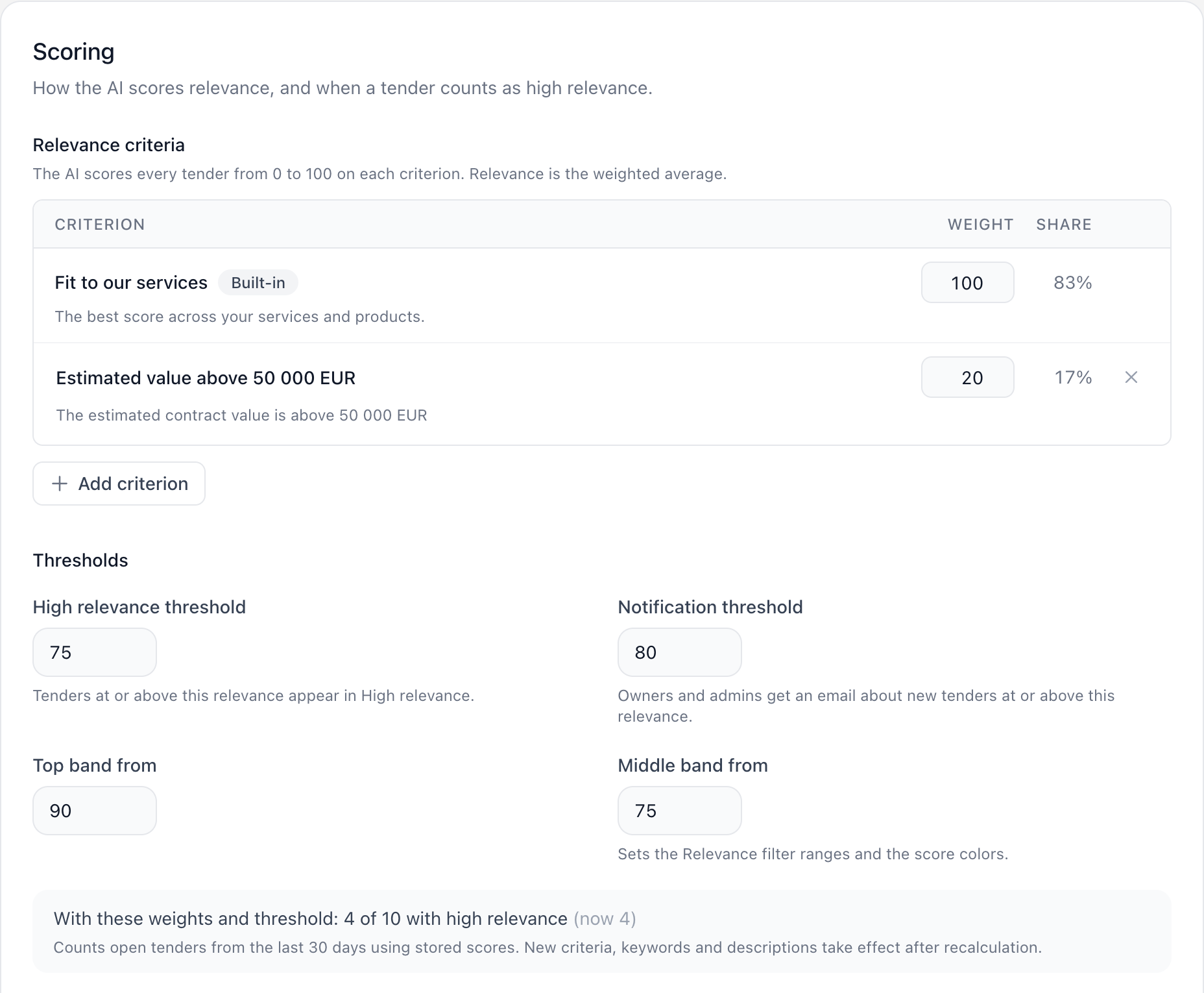
Relevance criteria
The AI scores every tender from 0 to 100 on each criterion. Relevance is the weighted average.
- Fit to our services is built in and always present. On its own it gives each tender the score of its best-matching service.
- Add criterion adds your own. Give it a name and, under What should the AI judge?, a short description, for example "The estimated value is between 100 000 and 5 000 000 EUR".
- Weight is a whole number from 0 to 100. Share shows each criterion's part of the total.
You can have up to 10 criteria. The tender page shows how each criterion scored.
Thresholds
| Setting | Default | What it does |
|---|---|---|
| High relevance threshold | 75 | Tenders at or above this relevance appear in High relevance. |
| Notification threshold | 80 | Owners and admins get an email about new tenders at or above this relevance. |
| Top band from | 90 | Where the top relevance band starts: the Relevance filter range, and green scores. |
| Middle band from | 75 | Where the middle band starts. Scores below it are gray. |
Preview
Under the thresholds, a live preview shows what your changes would do, for example "With these weights and threshold: 23 of 118 with high relevance (now 19)". It counts open tenders from the last 30 days using their current scores, so it updates while you type and costs nothing. New criteria, keywords and descriptions show up only after recalculation.
Other options
Language of AI explanations sets the language of the AI's explanations on the tender page: Last signed-in user’s language, Latvian or English.
Eligibility and Company profile
These sections set up the check of whether your company meets a tender's qualification requirements. See Eligibility check.
Saving
The bar at the bottom of the page has two buttons:
- Save stores your changes. The list keeps its current scores until the next recalculation, and Changes not applied yet shows next to the settings gear. The nightly run also applies them.
- Save and recalculate stores your changes and recalculates the list right away.
Next to the buttons, Tendergate estimates the work, for example "About 10 tenders to score and 247 to check for keywords". Changing only weights or thresholds needs no new AI scoring: "No AI calls needed; the list updates in seconds."
If you try to leave the page with unsaved changes, Tendergate asks first.
Recalculating
Owners and admins can recalculate at any time:
- Save and recalculate, at the bottom of the settings, applies saved and unsaved changes. When changes are waiting, Changes not applied yet next to the settings gear on the tender lists takes you there.
- Rescore everything, at the bottom of the Scoring section, scores every tender on the list again, including ones whose scores are current. Each tender takes one AI request, so Tendergate asks you to confirm.
While it runs, the status shows the progress, for example "Checking keywords 300 of 1200", "Recalculating 42 of 118" or "Checking eligibility 3 of 25". The list updates by itself when it finishes. You can keep working in the meantime.
When it is done, the status line shows the result, for example "Recalculated today 14:05 · 9 new with high relevance · 4 no longer high relevance". Click a count to see those tenders. Other outcomes:
- No change to the high-relevance tenders
- "2 tenders could not be scored; they are retried next time"
- Recalculation failed - the previous scores stay, and Try again starts it again
When scores change
- Every night, Tendergate scores newly published open tenders and applies any settings changes you saved without recalculating.
- When you recalculate, it rescores the open tenders published in the last 30 days whose inputs changed.
- When you change services, CPV codes or keywords, Changes not applied yet shows next to the settings gear until the next recalculation or the next night.
Scores are updated in place. Your shortlist and dismissals stay, and a tender that was already emailed is not emailed again. See What counts as an open tender.
Settings changes are recorded in the organization's audit log under Settings.