Comparing bids
Side-by-side vendor comparison using analysis results and criterion scores.
When you have multiple bids analyzed for the same procurement, you can compare them side by side.
The Compare & Export view
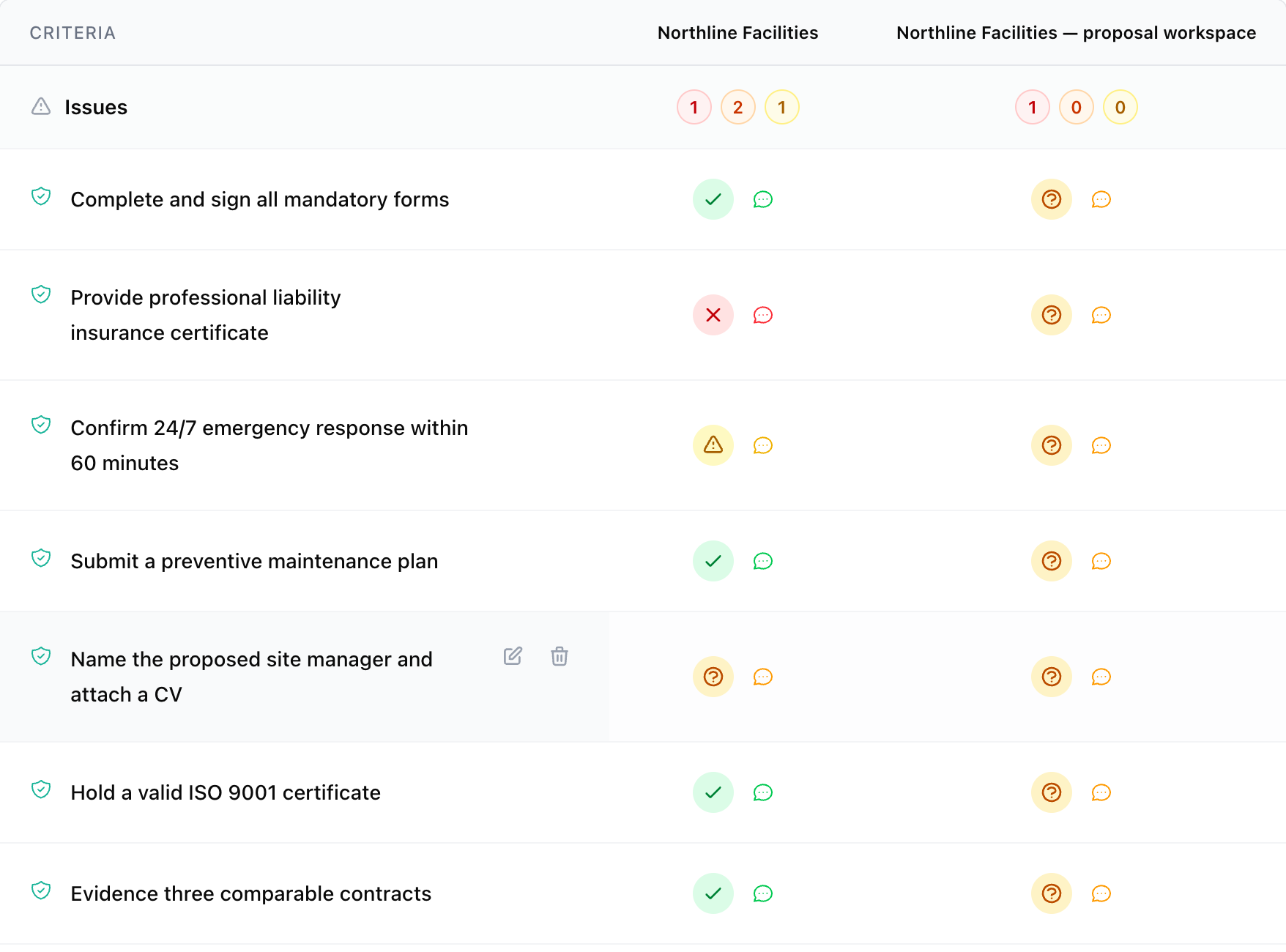
Click Compare & Export in the sidebar workflow. You'll see all analyzed bids, with a quick overview of which vendors have the fewest issues and the highest scores:
- Vendor name and overall recommendation
- Finding counts (Critical/Major/Minor per vendor)
- Criterion scores (if you configured evaluation criteria)
The view has three tabs, each showing a count:
- Criteria — each vendor's score against your evaluation criteria
- Requirements — every approved RFP requirement against each vendor (see below)
- Lots — per-lot offered terms and compliance (see lots)
Comparing criterion values
This is where evaluation criteria really pay off. If you set up criteria before running analysis, the comparison shows each vendor's extracted value side by side:
| Criterion | Vendor A | Vendor B | Vendor C |
|---|---|---|---|
| ISO 9001 | Pass | Fail | Pass |
| Experience (years) | 85/100 | 60/100 | 92/100 |
| Team size | 70/100 | 80/100 | 75/100 |
At a glance, you can see where each vendor excels and where they fall short.
If you don't have evaluation criteria yet, you won't see scoring data. You can still compare finding counts and recommendations, but the comparison is less detailed. Extract and review your RFP requirements, then sync criteria, and re-run the analysis if you need scoring.
Requirements matrix
The Requirements tab lays out every approved RFP requirement as a matrix:
- Rows: each approved requirement
- Columns: each vendor/bid
- Cells: a compliance status — Compliant, Partial, Non-compliant, Unverified, Not applicable, or Not analyzed
This complements the Criteria tab (which shows scores) and the Lots tab (which shows per-lot terms) — same vendors, viewed through their obligations.
Open any cell to see the evidence behind the status: the offered value, the AI's reasoning, and quotes from the proposal. This makes it easy to spot a requirement that several vendors struggle with, or a single vendor that fails an obligation everyone else meets.
Comparing finding counts
Even without criteria, the number and severity of findings tells you something:
- Vendor A: 0 Critical, 2 Major, 5 Minor
- Vendor B: 3 Critical, 8 Major, 12 Minor
- Vendor C: 1 Critical, 1 Major, 3 Minor
Vendor C looks strongest here, but dig into the actual findings before drawing conclusions. One vendor might have a "Critical" finding for a technicality while another is missing fundamental requirements categorized as "Major".
Exporting to Excel
Click the Export XLSX button on the Compare & Export page to download a complete Excel file. The export includes:
- Overview sheet — procurement details, summary statistics
- Findings — all findings across all bids, with severity, description, evidence, and verification status
- Criterion values — extracted scores and pass/fail results for each vendor
- Comparison — side-by-side vendor data
- Entities — captured people and companies with registry matches
- Eligibility and capacity — every register check per screened subject, with its status, how the subject was matched, the source register, and the date the data was current
The Excel file is self-contained — anyone can open it without needing access to the platform.
Use cases for export
Sharing with the evaluation committee. Not everyone needs a platform account. Export the results and distribute to committee members for review and discussion.
Archiving. Keep a record of the analysis alongside your procurement documentation. The export captures the state of the analysis at the time of download.
Further analysis. Import into your own spreadsheets, pivot tables, or reporting tools. The structured format makes it easy to slice the data however you need.
Audit trail. The export documents what the AI found and on what basis. Useful if procurement decisions are later questioned.
Best practices for comparison
Analyze all bids before comparing. Running all analyses first ensures each was evaluated under the same conditions. If you configured criteria after analyzing the first bid, re-run that one so all bids are measured the same way.
Use consistent document quality. If Vendor A submitted a detailed 200-page proposal and Vendor B sent a 10-page summary, the analysis will naturally find more in Vendor A's submission. This doesn't necessarily mean Vendor B is worse - they might have just been less verbose.
Export for team review. Click Export to get an Excel file with all comparison data. This makes it easy to share with colleagues and discuss offline.
What comparison doesn't do
The comparison shows you the data. It doesn't pick a winner for you - and it shouldn't. Procurement decisions involve context that the AI doesn't have: vendor relationships, strategic priorities, budget constraints, past performance.
Use the comparison to organize the data and spot patterns. Use your expertise to make the final call.