Tender page
What the page of a single tender shows - key facts, both scores, every publication of the procedure and its change history.
Click a tender in any list to open its page. From top to bottom it shows the header, the two score panels, the change history and the details. The score panels appear only for tenders scored for your organization.
Header
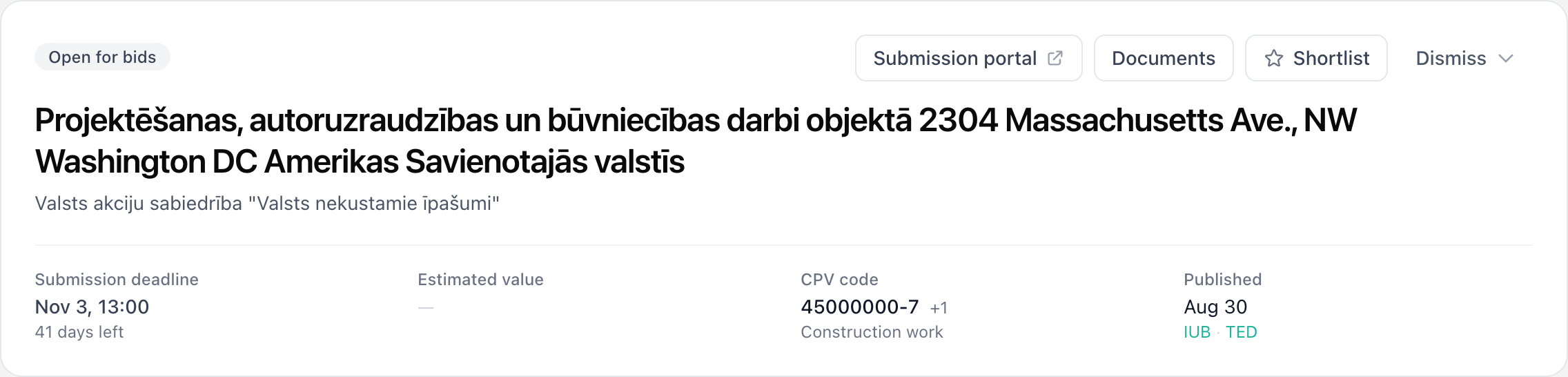
- The status, such as Open for bids or Closed, the title and the buyer.
- Submission portal and Documents, when the source provides them.
- Shortlist and Dismiss, the same as on the list. See Shortlisting and dismissing. A dismissed tender shows the date, the reason and who dismissed it, with Undo.
- The key facts: Submission deadline with the days left, Estimated value, CPV code (click +1 and similar to see all codes) and Published.
Under Published, you see every place the procedure was published, for example "IUB · TED". Each name links to that publication. Tendergate groups these publications into one tender, so you see the procedure once in the lists and once in the email.
When a tender is no longer open, a short line explains why, for example "Bidding closed on Sep 18. Kept for reference."
Relevance panel
The Relevance panel shows:
- the score from 0 to 100, and whether the tender has High relevance, Not high relevance ("Below the high relevance threshold (75)"), or is Excluded by a negative keyword
- Found by - the CPV code or keyword that found the tender
- when you use your own criteria, a table with each Criterion, its Weight, its Score and the Points it adds
- Services and products - the score for each of your services
- Explanation - the AI's reasoning, in the language set under Other options
- when it was scored
Eligibility panel
The Eligibility panel sits next to the relevance panel. It shows the headline, the score, what the check was based on, and each requirement with its status, reason and evidence. For a high-relevance tender that has not been checked yet, Check eligibility runs the check now. See Eligibility check.
Change history
When a procedure has more than one notice, or a notice describes its own changes, Change history lists them, oldest first. Click it to open. Each entry shows:
- the date and the type: Publication, Update / correction or Result notice
- the source, with an Open notice link
- the buyer's own description of the change, when there is one
- what changed, one line per field, for example "Deadline: Aug 17, 13:00 → Aug 20, 13:00" or a lot's new deadline
This is where you see deadline extensions, value changes, renamed or added lots and the result.
Details
The Details card holds the procedure type, identifiers, all CPV codes, the buyer's contact details, the lots and links to the documents.