Public tender list
Latvian public tenders that anyone can browse without an account, with results, bidders and saved searches.
The public tender list at tendergate.ai/tenders is open to anyone. You do not need an account to search it, filter it or open a tender. It is in English and in Latvian, at tendergate.ai/lv/tenders.
It lists Latvian notices from IUB, EIS and TED, and the tenders buyers publish on Tendergate. A procedure published in several places is one row. The list is updated every day, and the line under it shows when IUB was last imported.
Open, Planned and Closed
Three tabs split the list. Each shows how many tenders it holds with your current search and filters.
| Tab | What it shows |
|---|---|
| Open | Tenders that take bids now. |
| Planned | Procurements a buyer announced before the tender: prior information notices and market consultations from the last 12 months. A planned procurement leaves this tab once its tender opens. |
| Closed | Tenders whose submission deadline has passed. |
Searching
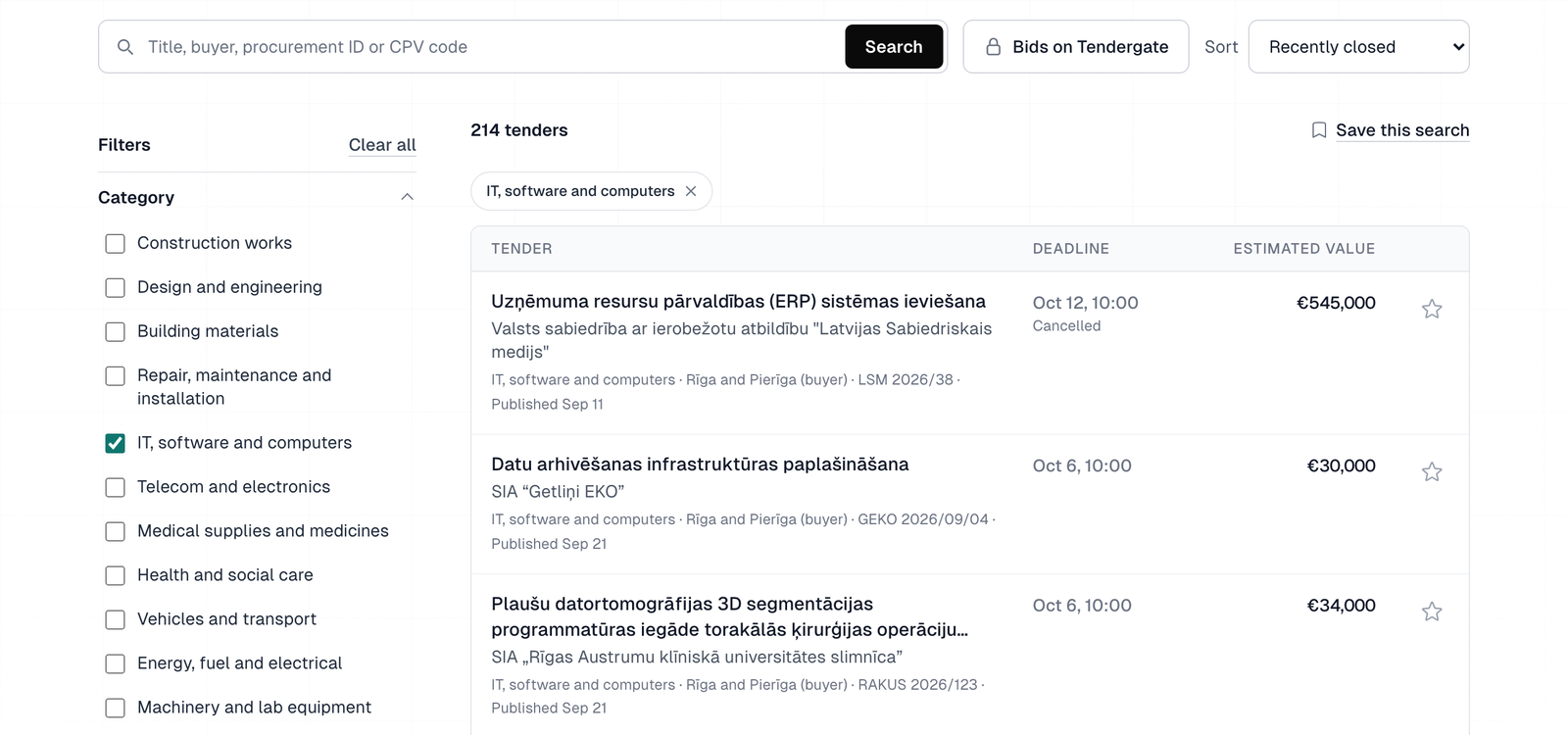
Type in Title, buyer, procurement ID or CPV code and click Search. The search works as in the app: every word has to match the title, the description or the buyer, and it also finds other forms of a word, CPV names in English or Latvian, procurement IDs, EIS numbers and links, and IUB or TED notice numbers. See What the search finds.
Here a CPV code can also be short: "72" finds every tender with a CPV code starting with 72, and "722" every one starting with 722.
When a search without filters finds nothing on your tab but finds tenders on exactly one other tab, the list switches to that tab and says so, for example "Nothing in Open matches this search, so this is the Closed list."
When a search finds nothing on your tab, the list suggests related categories and CPV groups, each with its number of tenders ("Browse a related category:"). It also links to the other tabs that have matches.
Filters
On a computer the filters are on the left. On a smaller screen, Filters opens them, and a button such as Show 12 tenders applies them.
| Filter | Options |
|---|---|
| Deadline (Open tab only) | Next 7 days, Next 30 days, At least 14 days left |
| Category | 19 groups such as Construction works or IT, software and computers, by the tender's main CPV code |
| Type of contract | Works, Supplies, Services |
| Region | Rīga and Pierīga, Kurzeme, Vidzeme, Zemgale, Latgale, Whole country |
| Estimated value | Up to €10,000, Up to €42,000, Up to €50,000, €50,000 or more, €100,000 or more, €200,000 or more, €1 million or more |
| Procurement type | Small-value procurement (PIL Art. 9), National procedure, EU-wide procedure, Funded project (MK No. 104), Utilities and defence |
| Published | Today, Last 7 days, Last 30 days |
| Source | Published on Tendergate, EIS, IUB, TED |
- Region is where the work is done. When the notice does not say, it is the buyer's region, and the row says so, for example "Zemgale (buyer)".
- Many tenders state no value. They stay in the list under every value option, and the filter says how many there are. Tick Hide tenders without a stated value to leave them out.
- On the Open and Planned tabs, each option shows its number of tenders with your other filters applied. Options that no tender in your search has are left out.
- To see one buyer's tenders, click the buyer's name in a row or on a tender page.
- Bids on Tendergate, next to the search, shows only the tenders that buyers published on Tendergate. Click it again to show all tenders.
Active filters appear as chips above the results. Remove them one by one, or click Clear all.
Sorting
Use Sort to change the order:
- Open - Newest first, Closing soon, Highest value, Lowest value first
- Planned - Newest first, Highest value, Lowest value first
- Closed - Recently closed, Newest first, Highest value, Lowest value first
The first option is the default. With a search, the default order puts title matches first.
What each row shows
- the title and the buyer
- the deadline with the days left, in red when 2 days or fewer are left, or Cancelled when the buyer cancelled the procedure
- the estimated value, when the notice gives one
- a line with the category, the region, the number of lots ("3 lots"), the procurement ID and, on Closed, when it was published or updated
Closed rows say what is known instead of "Closed": the winner ("Winner: …") and the number of bidders ("4 bidders").
Planned rows show the publication date and the kind of notice. While these dates are ahead, they also show until when the buyer takes comments ("Comments until …") and when the tender is expected ("Tender expected …").
A tender published on Tendergate reads Accepting bids on Tendergate under its deadline while it takes bids here, or Published on Tendergate in its line.
The tender page
Click a row to open the tender's page.
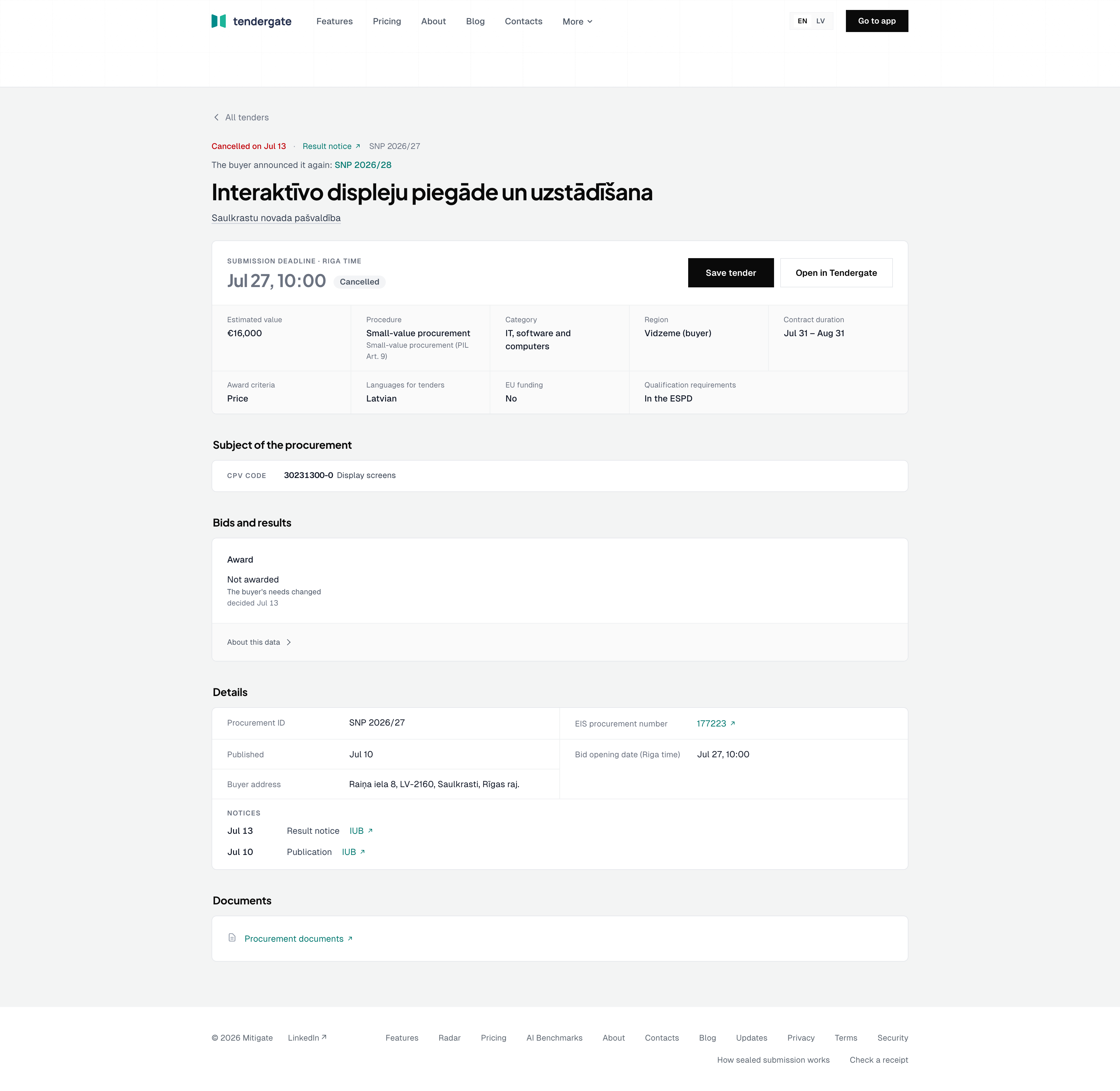
It shows:
- The status and title. A cancelled tender says when it was cancelled and links to the notice. When the buyer announced the procurement again, the page links both ways: "The buyer announced it again: …" and "Announced again after a cancelled attempt (cancelled on …): …".
- The buyer. Click the name to list all tenders from this buyer.
- The key facts: Submission deadline (Riga time) with the days left, Estimated value, Category and Region. A planned procurement shows the notice instead of a deadline.
- What you decide on, when the notice gives it: Contract duration, Award criteria with their weights, Framework agreement with the number of suppliers, Languages for tenders, Place of performance, EU funding and where the Qualification requirements are.
- Save tender and, while the tender is open, a link to submit a bid, such as Submit a bid on EIS. Official notice links to each source the tender was published in.
- Lots, when the procedure is split into lots.
- Bids and results once bidding is over. For each lot: the winner, the contract value, the number of offers, the lowest and highest bid and the decision date, or that the lot was not awarded and why. A framework agreement's value reads "framework agreement, up to …", the most the buyer may buy under it. Below, who bid and who won, with bid prices where they are known.
- Past bidders on similar tenders, for many open tenders: who bid on similar past tenders and who won them.
- Details: the Procurement ID, the procedure, the procurement type, the publication date, the EIS procurement number with a link to EIS, the bid opening date, the CPV codes and the buyer's address.
- Description and Documents. See Documents.
Notices in Details
In Details, see the procedure’s notices, newest first. The latest three are shown initially; expand the earlier notices to see the rest. Each entry shows its date, notice type and source link, with the change description when available.
The public page keeps this history inside Details. The signed-in tender page still has a separate Change history section.
Bidder summaries
A company named in the bids links to its public summary: how many bids it made, how many it won, its win rate, how many buyers it bid for, its recent bids and the buyers it bids for most often. The full profile, with bid prices, rivals and the bidding trend, is in Tendergate. See Company profile.
Only companies have a summary. A person or a sole trader is never named.
Saving a tender
Click the star on a row or Save tender on a tender page.
- If you are signed out, you create a free account, and the tender goes on your shortlist.
- If you are signed in, the tender goes on your organization's shortlist. If you belong to several organizations, you choose one first.
A saved tender shows a filled star, and its page reads Saved · open in Tendergate. See Shortlisting and dismissing.
Saving a search
Once you have searched or filtered, Save this search appears above the results.
- If you are signed out, you first create a free account or log in. Tendergate then saves the search, with its daily email on.
- If you are signed in, a page shows the search and Email me new tenders for this search every morning, ticked by default. Click Save search. If you belong to several organizations, click the one that should keep the search.
The search then opens in your organization's tender list. See Searches saved from the public tender list and Saved search emails.
Tenders published on Tendergate
Buyers can publish their tenders on Tendergate. These tenders appear in the list like any other, and Bids on Tendergate shows only them.
When a tender takes bids on Tendergate, its page has Bid on this tender. Enter your work email, and Tendergate sends you a sign-in link. Signed in, click Start your bid, or Open your bid once you have started one. Some tenders are listed here but take bids in EIS. They read Listing (bids in EIS) and have Submit in EIS.
See Tenders published on Tendergate.
Signed in, the Tenders section of the app also covers other countries, and Matched for you selects and scores tenders for your company. See Tenders catalogue.